
Start Shizuku with ADB: Complete Computer Setup Guide
Start Shizuku without root by connecting your Android phone to Windows, macOS, or Linux and running one ADB command. This guide covers Platform Tools, USB debugging, authorization, exact commands, verification, and every common connection error.
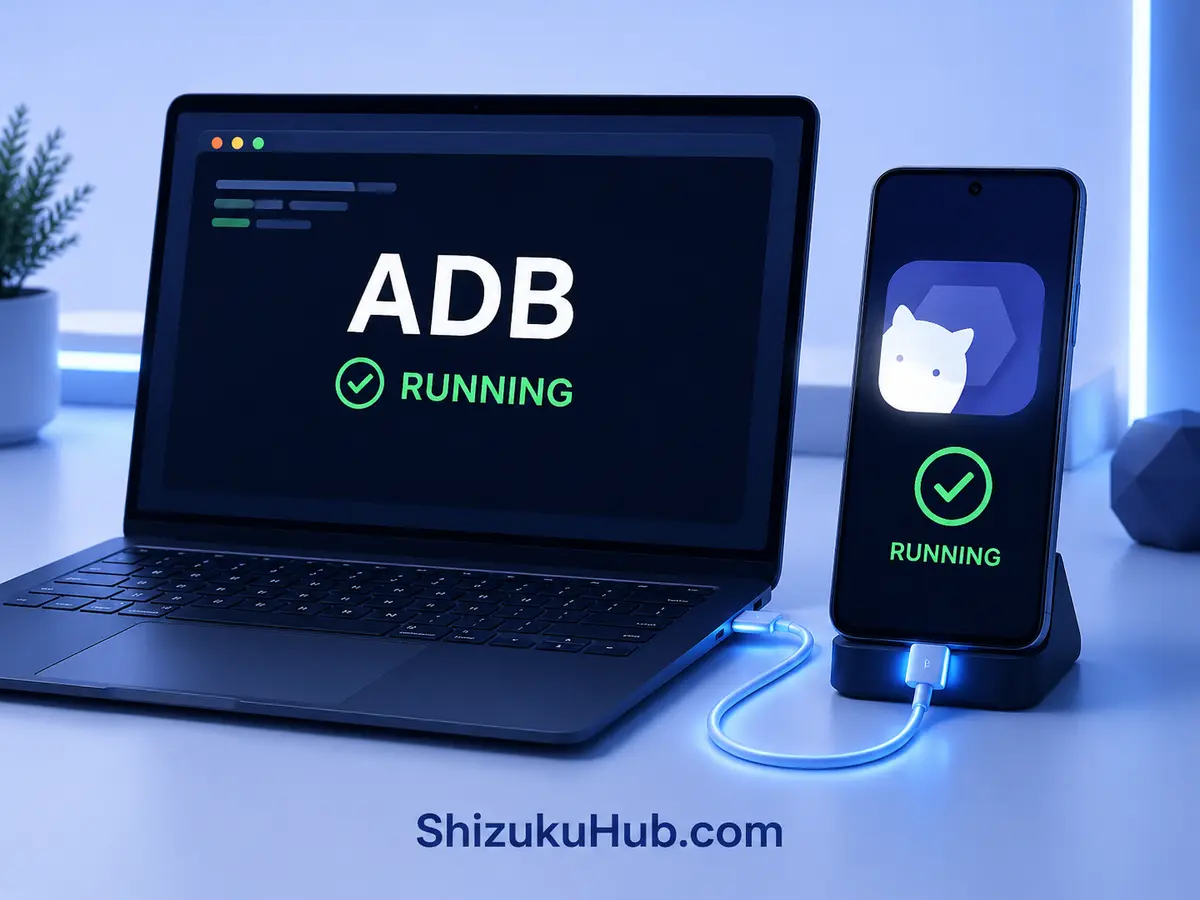
Quick command to start Shizuku with ADB
After ADB detects your authorized phone, run this command from the Platform Tools folder:
adb shell sh /sdcard/Android/data/moe.shizuku.privileged.api/start.shPowerShell, macOS, and Linux users may need ./adb instead of adb when the Platform Tools folder is not added to PATH.
1
Computer required
Use Windows, macOS, or Linux with Google Platform Tools extracted to a known folder.
2
Root not required
ADB starts Shizuku with Android shell privileges while the bootloader and system remain unchanged.
3
Repeat after reboot
The ADB-started service stops when Android restarts, so run the start command again after reboot.
When should you start Shizuku with ADB?
Computer ADB is the most reliable option for Android 10 and older, where on-phone wireless debugging is unavailable. It is also a useful fallback on Android 11–16 when pairing-code discovery fails, a manufacturer hides Wireless debugging, or background restrictions keep stopping pairing.
For a fully on-phone setup on newer Android versions, compare this method with our Shizuku wireless debugging guide. If your code will not pair, use the targeted pairing-code troubleshooting guide.
Step 1: Install ADB Platform Tools
Download and extract Google’s SDK Platform Tools on the computer. You do not need the full Android Studio package. Keep the extracted platform-tools folder somewhere easy to find.
- Windows: Open the platform-tools folder, click the address bar, type cmd, and press Enter. PowerShell users can open Terminal in the same folder.
- macOS: Open Terminal, type cd followed by a space, drag the platform-tools folder into Terminal, and press Enter.
- Linux: Open a terminal in the extracted platform-tools directory or change to it with cd.
For more background on installation and PATH configuration, Lifewire provides a detailed Android Debug Bridge installation guide. All Shizuku-specific steps and commands remain available on this page.
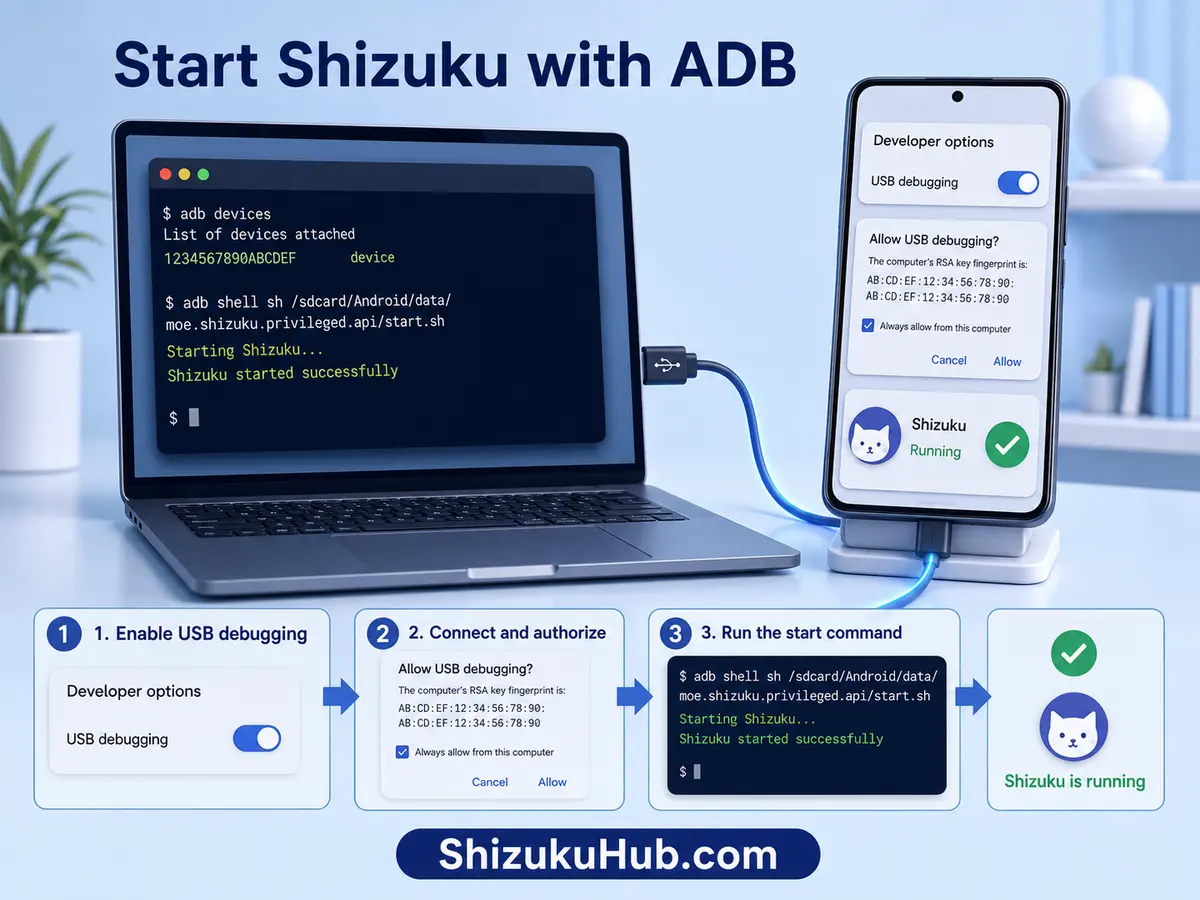
Step 2: Enable Developer Options and USB Debugging
- Open Android Settings and enter About phone.
- Tap Build number seven times and confirm the phone PIN if requested.
- Return to Settings and open Developer Options.
- Enable USB debugging and accept Android’s warning.
- Keep Developer Options enabled while using the ADB-started Shizuku service.
Step 3: Connect and Authorize the Phone
Use a data-capable USB cable and connect directly to the computer. Unlock the phone, then run:
adb devicesAndroid should display “Allow USB debugging?” with the computer’s RSA fingerprint. Tap Allow. Select “Always allow from this computer” only on a computer you trust. Run adb devices again. A correct connection shows the device serial followed by the word device.
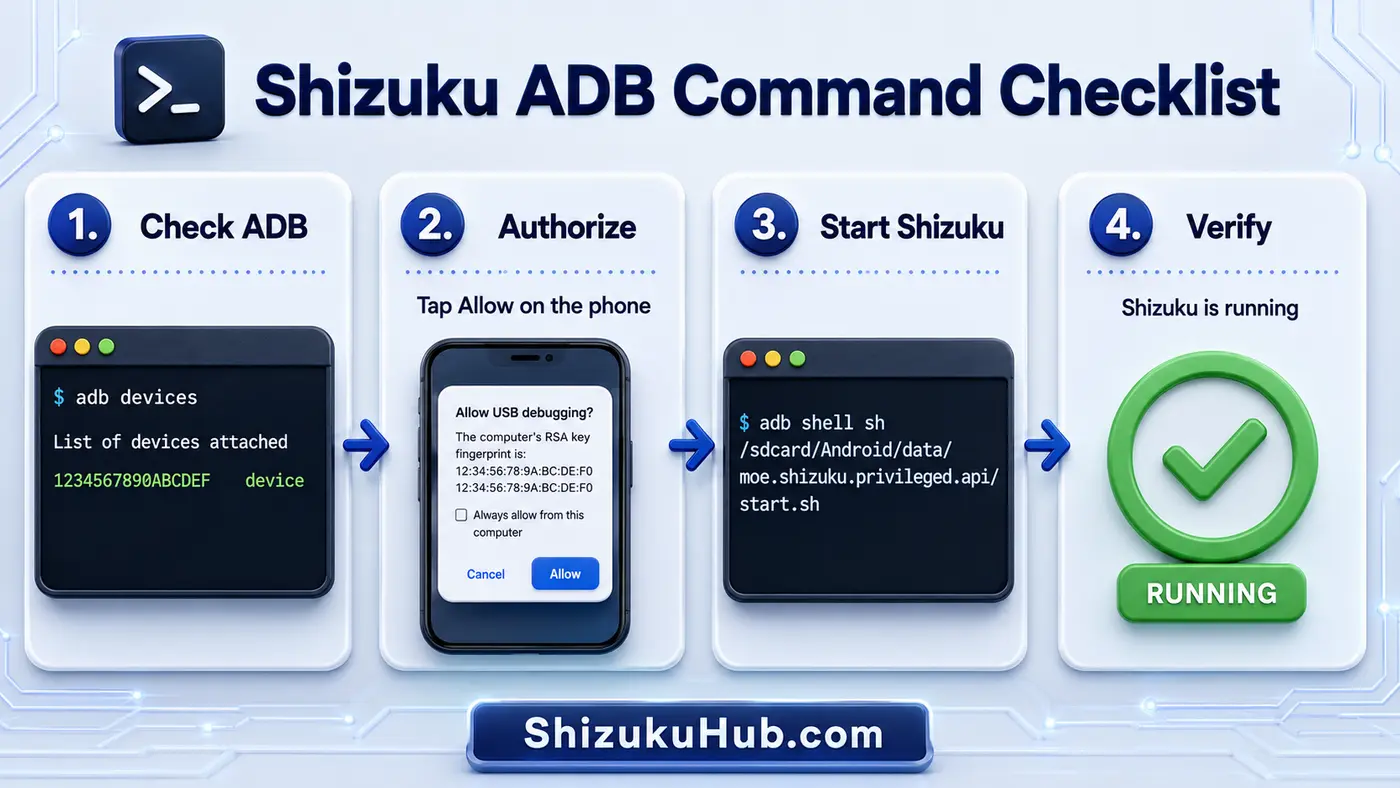
Step 4: Run the Shizuku ADB Start Command
Open Shizuku on the phone so you can confirm its status, then paste the command below into the same terminal window:
adb shell sh /sdcard/Android/data/moe.shizuku.privileged.api/start.shThe terminal should print startup information. Return to Shizuku and confirm that its status says the service is running. You can disconnect the cable after successful startup unless you need ADB for another task.
Windows, macOS, and Linux command differences
Windows Command Prompt:
adb devices
adb shell sh /sdcard/Android/data/moe.shizuku.privileged.api/start.sh
Windows PowerShell:
.\adb.exe devices
.\adb.exe shell sh /sdcard/Android/data/moe.shizuku.privileged.api/start.sh
macOS or Linux:
./adb devices
./adb shell sh /sdcard/Android/data/moe.shizuku.privileged.api/start.sh
Use .\adb.exe in Windows PowerShell and ./adb on macOS or Linux when the Platform Tools folder is not in PATH. Windows Command Prompt normally uses adb.
ADB device status and fixes
Device: The phone is connected and authorized. Run the Shizuku command.
Unauthorized: Unlock the phone and accept the RSA prompt. If it never appears, revoke USB debugging authorizations, reconnect, and approve again.
Offline: Reconnect the cable, toggle USB debugging, then run adb kill-server followed by adb start-server.
No device listed: Try a data cable, a different USB port, the correct Windows OEM driver, and a direct connection without a hub.
01
ADB is not recognized
Open the terminal inside platform-tools, use ./adb where required, or add the folder to PATH.
02
Permission denied
Accept the phone’s RSA authorization prompt. Xiaomi may also require USB debugging (Security settings).
03
start.sh not found
Install and open the current Shizuku APK first. Then copy the command shown inside Shizuku and run it exactly.
04
Service stops later
Keep Developer Options and USB debugging enabled, remove battery restrictions, and restart after every reboot.
Manufacturer-specific ADB fixes
Xiaomi, Redmi, POCO: Enable USB debugging (Security settings) separately when ADB permissions appear limited. Avoid device-security scans that disable Developer Options.
OnePlus and OPPO: If the service starts with restricted permissions, review Permission monitoring in Developer Options.
Huawei: Allow ADB debugging in charge-only mode where the option exists.
Samsung: Install the correct USB driver on Windows when adb devices remains empty, and keep the phone unlocked during first authorization.
What happens after Shizuku starts?
Open a compatible companion app and approve its Shizuku permission request. Shizuku itself does not debloat, back up, or customize Android; it provides the service used by supported apps.
Browse our Shizuku supported apps list for app managers, installers, file tools, terminals, and customization apps. For an explanation of the non-root security model, read Shizuku without root.
Safety checklist
- Use the direct Shizuku APK on this page. Our file is VirusTotal scanned and tested on real devices.
- Authorize ADB only on a computer you control and trust.
- Revoke USB debugging authorizations when a borrowed or public computer was used.
- Do not run unrelated ADB commands copied from unknown sources.
- Approve Shizuku access only for companion apps you intentionally installed.
Start Shizuku with ADB FAQs
Start Shizuku now
Install Shizuku, authorize your phone with adb devices, run the start command, and confirm the service status before opening a companion app.