
ANDROID UTILITY · FREE & OPEN SOURCE
Shizuku APK Download for Android
Download Shizuku APK for Android, then start compatible apps with wireless debugging or ADB. Root is optional.
Android 7.0+ · Wireless setup on Android 11+ · Root optional

Download Shizuku APK
Use the button below to download the APK file. After installation, follow the setup instructions for your Android version.
VirusTotal-scanned APK. The file is also checked on compatible Android devices by ShizukuHub before it is offered for download.
The current verified release is Shizuku v13.6.0. It adds Android 16 QPR1 support, updates the start command, and supports automatic startup without root on Android 13 or newer when connected to a trusted WLAN. A higher version number shown elsewhere does not automatically mean it is a newer original RikkaApps build.
A malware scan is one check, not a guarantee of safety. Review permissions and the actions requested by every app you authorize.
Shizuku APK at a glance
| App name | Shizuku |
| Latest official release | 13.6.0.r1086.2650830c |
| Package name | moe.shizuku.privileged.api |
| Developer | Xingchen & Rikka |
| Android requirement | Android 7.0 or newer |
| Wireless debugging | Android 11 or newer |
| Root required | No |
| Price | Free and open source |
Version information reviewed on September 16, 2026. ShizukuHub is an independent Android resource.
What is Shizuku?
Shizuku is an open-source Android utility that lets compatible apps use selected system APIs with ADB or root privileges. It does not unlock your bootloader and it is not a one-tap rooting application. Instead, the Shizuku service acts as a controlled bridge between Android and apps that explicitly support its API.
This makes the Shizuku app useful for permission managers, debloat tools, backup utilities, file managers, terminal tools, app installers, automation apps, and other advanced Android utilities. Explore our Shizuku Supported Apps to compare practical options. A supported app still has to request Shizuku access, and you can approve or deny that request.
Installing Shizuku is only the first step: start its service, open a supported app, and approve that app’s access when prompted. You stay in control of which apps are authorized.
What is new in Shizuku v13.6.0?
- Official support for Android 16 QPR1.
- An updated start command and more flexible location for the executable start file.
- Automatic startup without root on Android 13 and newer when connected to a trusted Wi-Fi network.
- Compatibility and stability improvements carried forward from earlier releases.
Users on Android 14, Android 15, or Android 16 should prefer the latest official release instead of installing an old Shizuku APK unless a specific compatibility issue requires an earlier build.
Main Shizuku features
More control over Android, with access you choose and apps you trust.
Advanced access without root
Use wireless debugging on Android 11+ for ADB-level operations without modifying the boot image.
Choose who gets access
Approve supported apps individually and revoke access when it is no longer needed.
Three startup options
Choose wireless debugging, computer ADB, or an existing root setup.
Open-source foundation
The project publishes source code and release notes, so its implementation can be reviewed.
Apps do the work
Shizuku supplies the service; your chosen tool manages packages, permissions, files, or shell tasks.
Know the limits
ADB privileges are not full root. Features still depend on Android, the device, and the supported app.
How does Shizuku work?
Normal Android apps run inside restricted sandboxes. Many system APIs are unavailable to them even when a user understands the task and wants to grant access. Shizuku starts a service with ADB shell or root identity and exposes supported API access to authorized apps.
This is different from full root. Shizuku does not make every installed app a superuser. The practical permissions available through ADB can also be more limited than genuine root access. Its advantage is that many advanced tasks become possible on a stock phone without modifying the boot image.

How to install Shizuku APK
- Use the Download Shizuku APK button available on this page.
- If you downloaded an APK file, allow your browser or file manager to install unknown apps when Android asks.
- Open the downloaded file and tap Install.
- Launch Shizuku and choose wireless debugging, computer ADB, or root according to your device.
- Start the service before opening a Shizuku-supported app.
- Open your supported app, request Shizuku access, and approve it only if you trust the app.
Android may use slightly different menu names depending on the manufacturer. Installing the APK alone does not start the Shizuku service.
After installing, you can turn off the browser or file manager’s permission to install unknown apps. This is separate from the debugging settings needed to run Shizuku.
How to use Shizuku without root
Shizuku without root is supported through wireless debugging on Android 11 and newer. If you are unsure about root or bootloader requirements, see does Shizuku require root. Android 10 and older devices generally need a computer and USB debugging. The service may stop after a reboot, so non-root users can follow the Shizuku not running after reboot instructions to start it again.
Start Shizuku with wireless debugging
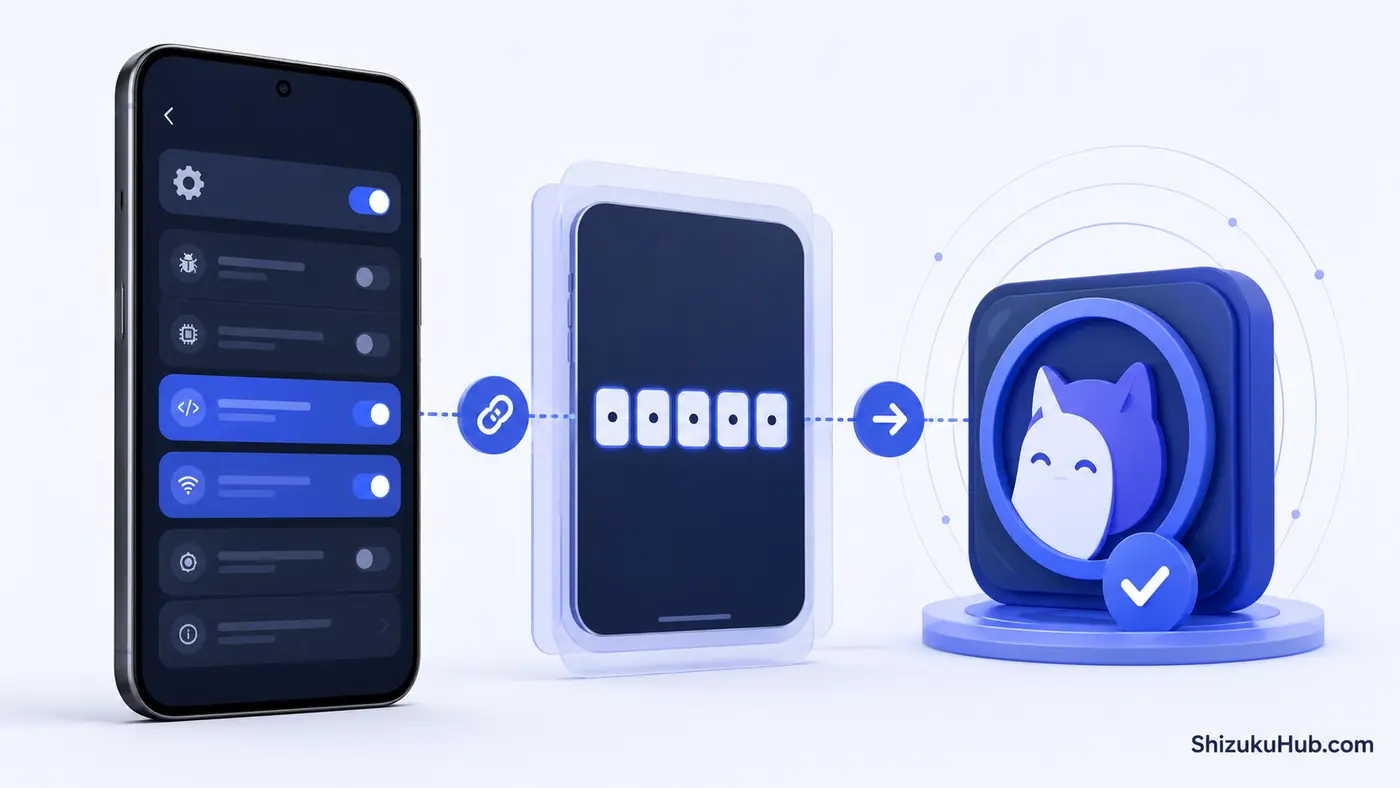
- Open Settings and enable Developer options by tapping Build number seven times.
- Open Developer options and enable Wireless debugging.
- Open Shizuku and select the wireless debugging startup method.
- Tap Pairing, then open Pair device with pairing code in Android settings.
- Enter the pairing code through the Shizuku notification or pairing prompt.
- Return to Shizuku and tap Start.
Wireless debugging requires Android 11 or newer. Keep Shizuku allowed in the background if it remains stuck on Searching for pairing service. Follow our Shizuku wireless debugging for pairing steps and manufacturer-specific fixes.
Start Shizuku with a computer and ADB
Install Google Android Platform Tools on Windows, macOS, or Linux. Enable USB debugging, connect the phone, accept the authorization prompt, and use the start command shown inside your installed Shizuku version. Copy the current command from the app because paths can change between releases. The Shizuku vs ADB comparison explains when an app-based Shizuku workflow is more convenient and when direct ADB remains the better tool. Follow the computer ADB setup steps for your operating system.
Start Shizuku on a rooted phone
Open Shizuku and use the root startup option. Approve the superuser request from your root manager. Root can simplify startup, but it is optional for the core Shizuku experience.
Android compatibility
The current Shizuku APK supports Android 7.0 and newer. The easiest computer-free method needs Android 11 because wireless debugging became available in Developer options from that generation.
| Android version | Recommended startup | PC required |
|---|---|---|
| Android 7 to 10 | USB debugging with ADB, or root | Yes for non-root |
| Android 11 to 12 | Wireless debugging | No |
| Android 13 to 15 | Wireless debugging, with trusted Wi-Fi startup where supported | No |
| Android 16 / QPR1 | Shizuku v13.6.0 or newer official release | No |
Samsung One UI, Xiaomi MIUI or HyperOS, Oppo and OnePlus ColorOS, Vivo Funtouch OS, Huawei EMUI, and other manufacturer skins can add battery or debugging restrictions. Exact steps can differ from stock Android.
For newer devices, see our Android 15 and 16 compatibility notes. Support for one Android release does not guarantee that every manufacturer restriction is removed. Shizuku functionality may vary depending on your device manufacturer, system settings, and Android version.
What can you do with Shizuku?
- Manage selected app permissions with a supported permission controller.
- Disable or uninstall unwanted packages for the current user with a trusted debloat tool. System-partition files are not erased by a typical non-root uninstall.
- Freeze apps with Hail or another compatible app manager.
- Install, update, or manage APK packages with supported installers.
- Use Shizuku-compatible file managers where Android and the chosen app permit access.
- Run shell workflows with Termux and rish or a compatible tool such as aShell.
- Use supported batch restore and management features. Shizuku does not give backup apps unrestricted access to private app data.
Shizuku itself does not contain a debloater, file manager, or automation interface. It supplies access to compatible apps. Explore what you can do with Shizuku for a detailed breakdown of practical use cases. Results depend on Android version, device manufacturer, and the app being used.
Popular apps that support Shizuku
The Shizuku ecosystem includes tools such as Canta, Hail, App Manager, aShell, Install with Options, SD Maid SE, Swift Backup, and permission-management utilities. Compatibility can change, so verify support on the app developer’s current listing before granting access.
Only authorize applications you recognize and trust. A compatible app can perform more powerful actions after receiving Shizuku permission.
For example, Canta uses Shizuku for package removal. Swift Backup supports selected Shizuku-assisted operations, but private app-data backup and restore require root.
For audio controls and app-management tools in one place, try ShizuTools APK. It connects to Shizuku to offer features such as simultaneous audio playback, per-app sound adjustments and debloating. Available features depend on your Android version, device and the apps you use.
Is Shizuku safe?
Shizuku is open source and does not permanently root a device or silently authorize every app. The APK provided on this page is checked with VirusTotal and tested on compatible devices. Shizuku still provides elevated ADB or root-backed access to apps you approve, so only authorize apps you trust. Read our Shizuku safety and permissions explanation for a complete security assessment.
- Use the Shizuku APK download button on this page. We verify the version, scan the file with VirusTotal, and test it on compatible Android devices before providing it.
- Avoid Shizuku Mod APK, cracked, premium-unlocked, or unofficial repacked files.
- Check that the Android package name is moe.shizuku.privileged.api.
- Grant Shizuku permission only to trusted apps.
- Revoke access after uninstalling or no longer using a compatible tool.
- Read every command before using terminal or debloat instructions.
ShizukuHub is an independent guide and is not affiliated with Xingchen, Rikka, or the Shizuku project.
The package name alone does not prove that an APK is genuine. A clean scan also does not make every command or authorized app safe. Revoke authorization when you stop using a tool.
For broader device protection, review the Electronic Frontier Foundation’s Android privacy and security settings.
Shizuku vs root
| Area | Shizuku | Root |
|---|---|---|
| Bootloader modification | Not required for non-root setup | Often required |
| Access level | ADB shell or root-backed API bridge | Full superuser access |
| Setup after reboot | May need restart on non-root devices | Usually persistent after configured |
| Compatible apps | Apps built with Shizuku support | Root-aware apps |
| Risk | ADB mode has narrower privileges; root mode can be much broader | Wider system-level risk |
Shizuku is not a complete replacement for root. It is a practical option when an app supports its API and ADB-level privileges are sufficient. Our Shizuku vs Root comparison explains the differences in access, setup, persistence, and risk.
Need another approach? Compare Shizuku alternatives, or read Shizuku vs Dhizuku to understand why device-owner access is a different model.
Common Shizuku problems and fixes
Searching for pairing service
Allow Shizuku to run in the background and keep the phone connected to Wi-Fi. Disable aggressive battery optimization for Shizuku if the manufacturer stops background network discovery.
Wireless pairing fails
Turn wireless debugging off and on, create a new pairing code, and enter the fresh code promptly. On Xiaomi or Poco, Android-style notifications and the separate USB debugging security option may be required.
Shizuku is not running after reboot
The service can stop after a reboot on a non-rooted device. Start it again through wireless debugging or ADB. Android 13 and newer may support automatic startup while connected to a configured trusted WLAN in the current official release.
A supported app cannot detect Shizuku
Confirm that the service status says running, open Authorized applications, grant access when prompted, then restart the compatible app.
ADB permission is limited
Manufacturer restrictions can limit ADB. MIUI may require USB debugging security settings, while ColorOS devices may require Permission monitoring to be disabled in Developer options.
If a fresh code still fails, use the pairing-code troubleshooting steps. If the service stopped during a restart, follow the reboot recovery instructions.
Shizuku old versions
Need an older release? Browse our Shizuku Old Versions archive for previous APK builds with version details and direct download links. An older version can help when a specific Android version, custom ROM, device update, or companion app has a compatibility issue. For most users, the latest Shizuku APK remains the recommended choice.
Before downgrading, back up relevant app settings and confirm that the selected version supports your Android device. You can download the required archived APK directly from our old versions page.
Frequently asked questions
Download the tested Shizuku APK
Download the APK, start Shizuku with the method your device supports, and authorize your chosen apps individually.