
Shizuku Not Running After Reboot? Complete Fix Guide
Shizuku stopping after a phone restart is usually expected in no-root mode. Learn how to start the service again, keep pairing saved, enable trusted Wi-Fi auto-start, and fix background restrictions.
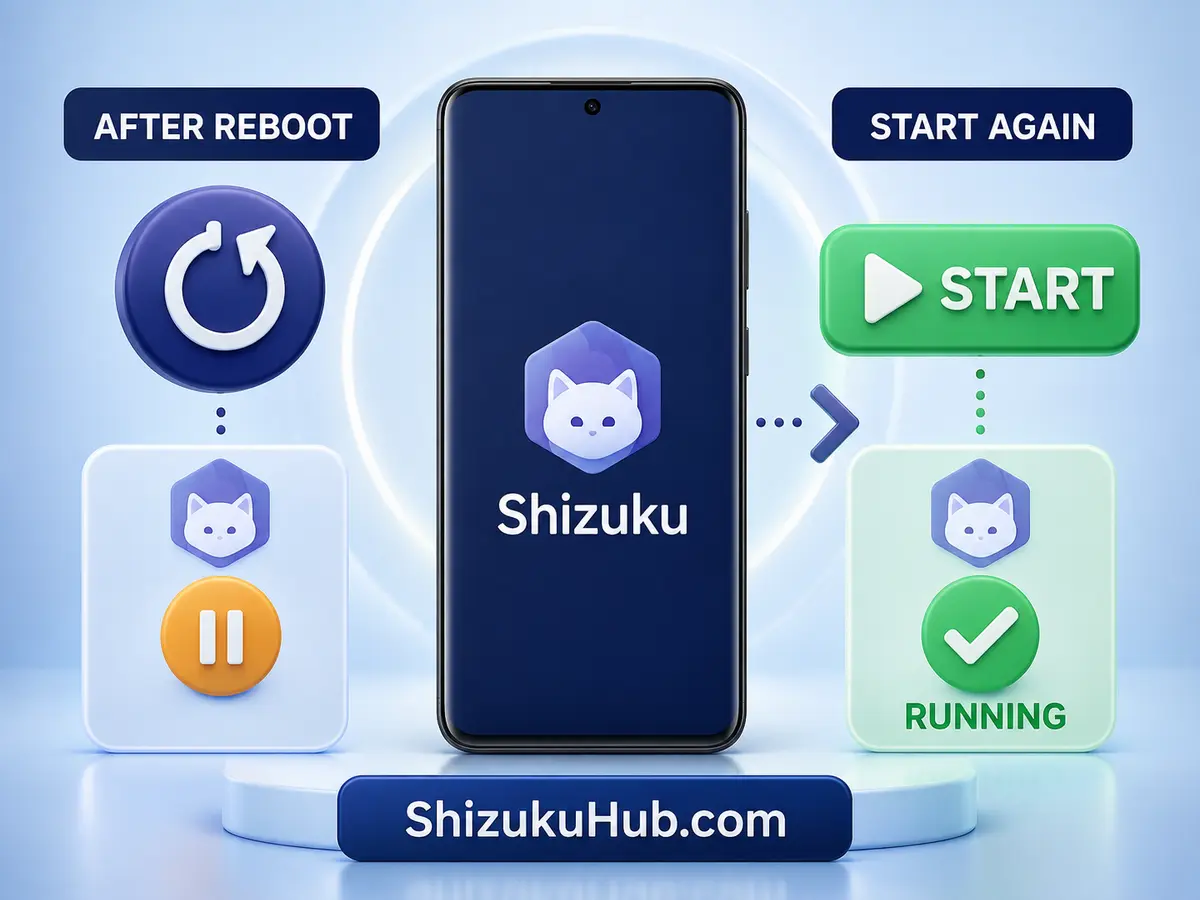
Quick Answer: Restart the Service, Not the Installation
You normally do not need to reinstall Shizuku or pair the phone again after every reboot. Android ends the temporary ADB shell session that powers Shizuku in no-root mode, so the app remains installed while its service stops. Open Shizuku, enable Wireless debugging if needed, tap Start, and confirm the status changes to Running.
If you have never completed the initial setup, follow our Shizuku wireless debugging. If the pairing record disappeared or the six-digit code fails, use the pairing code troubleshooting.
✓
Pairing Usually Stays Saved
The wireless debugging pairing record normally survives a regular reboot, so a fresh code is not required each time.
⏻
The Service Stops
The no-root Shizuku service uses a temporary ADB shell session. Android closes that session while restarting.
↻
Start Shizuku Again
Reconnect to Wi-Fi, enable Wireless debugging, open Shizuku, tap Start, and verify the green running status.
Why Shizuku Stops After Reboot
Shizuku gives supported apps access to selected Android system capabilities without permanently rooting the device. In no-root mode, the service is started through Wireless debugging or a computer ADB command. That process belongs to Android’s temporary ADB session, and a reboot clears it as part of normal system startup.
This behavior does not mean the APK is damaged, the phone is incompatible, or the previous setup failed. The Shizuku app, its settings, and approved-app list can remain present even though the service itself is offline. The reliable test is the status shown inside Shizuku after the phone finishes booting.
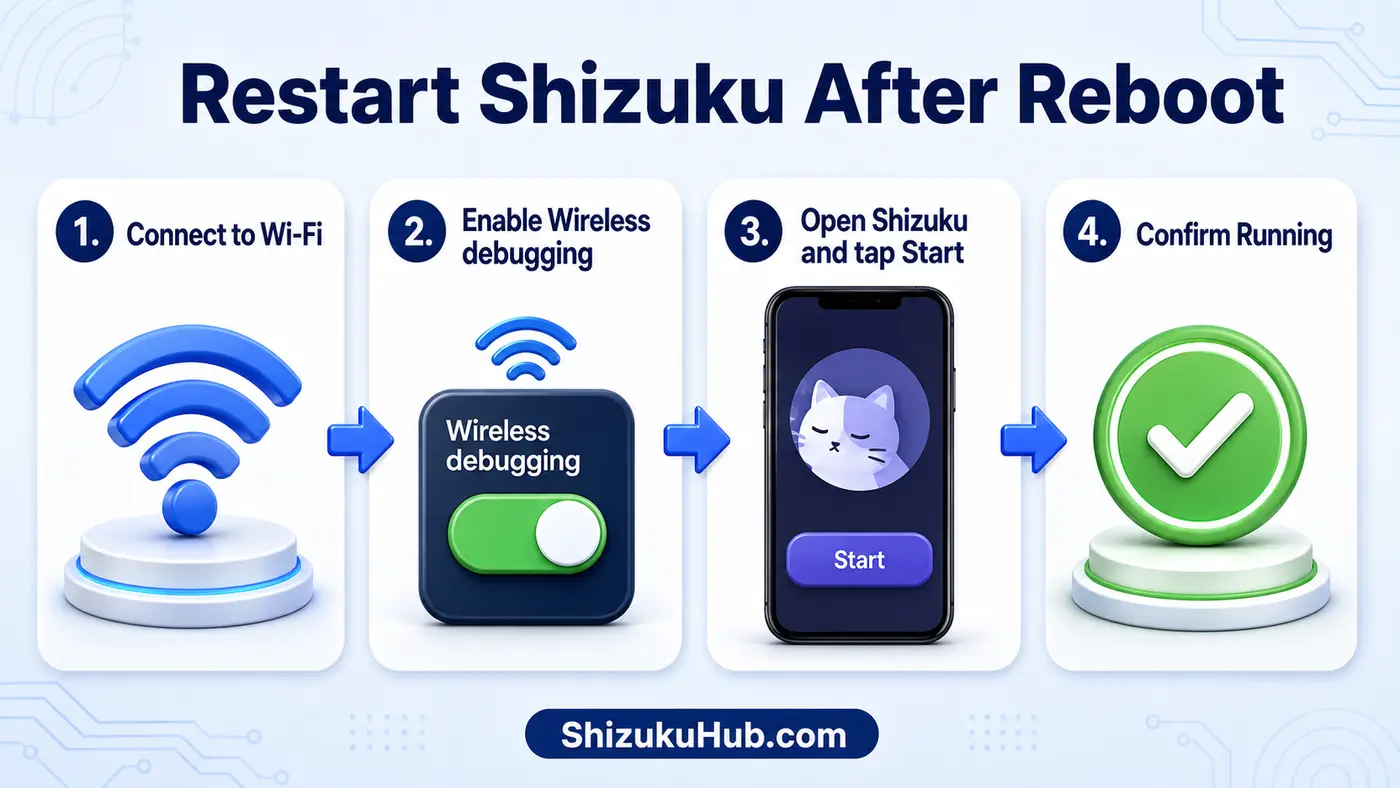
How to Restart Shizuku After Reboot
Step 1: Connect to Wi-Fi
Connect the phone to a Wi-Fi network. Wireless debugging usually requires an active Wi-Fi connection even when the network has no internet access.
Step 2: Enable Wireless Debugging
Open Settings > Developer Options > Wireless debugging and switch it on. If the switch is already on but Shizuku will not start, turn it off, wait a few seconds, and turn it on again.
Step 3: Open Shizuku and Tap Start
Return to Shizuku and tap Start under the wireless debugging method. When pairing was saved before reboot, Shizuku can normally start without requesting another pairing code.
Step 4: Confirm Running Status
Wait for the status to show Shizuku is running. Reopen any companion app that was already open during startup so it can reconnect to the service.
Do You Need a New Pairing Code After Reboot?
Usually, no. Pairing and starting are separate actions. Pairing authorizes the phone for wireless ADB; starting launches the Shizuku service for the current boot. A standard restart normally ends the service but keeps the paired-device record.
Pair again only when Android removed the saved pairing, Developer Options were reset, wireless debugging data was cleared, the phone received a major reset, or Shizuku explicitly asks for a new code. Do not repeatedly generate codes when the real issue is simply a stopped service.
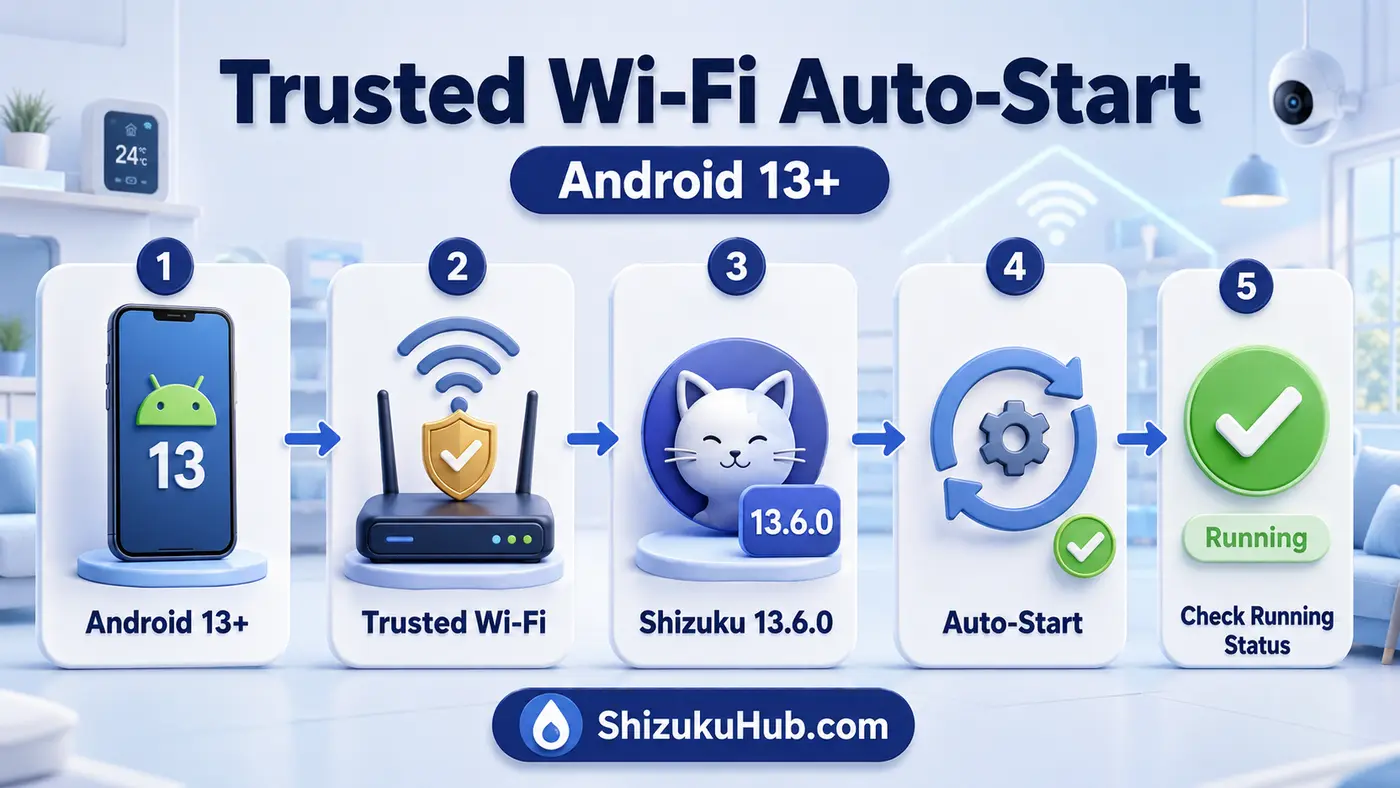
Android 13+ Trusted Wi-Fi Auto-Start
Shizuku 13.6.0 includes no-root auto-start support on Android 13 and newer when the phone connects to a trusted WLAN. This can reduce the need to open Shizuku manually after reboot, but the result still depends on the Android build, network trust state, and the manufacturer’s background-management rules.
Use the current build, connect to the network you trust, keep Wireless debugging available, and check Shizuku after boot. Auto-start is a convenience, not a reason to skip the running-status check before opening an app that depends on Shizuku.
Trusted Wi-Fi Auto-Start Not Working? Try These Fixes
Update Shizuku. Use version 13.6.0 or newer so the Android 13+ trusted-WLAN auto-start feature and current start command are available.
Keep Wi-Fi and Developer Options enabled. Turning off Developer Options, USB debugging, or Wireless debugging removes the conditions Shizuku needs for no-root startup.
Allow background activity. Set Shizuku to Unrestricted or the nearest equivalent in Battery settings, allow notifications, and remove it from sleeping-app lists. This does not keep the old ADB session alive through a reboot, but it helps the app react to a trusted network and report service status.
Review manufacturer controls. Samsung, Xiaomi, POCO, OnePlus, OPPO, Vivo, iQOO, and Huawei add their own battery and background limits. The device-specific guidance at Don’t Kill My App explains where many of these controls are located.
Test without network interference. If local wireless discovery fails, temporarily pause a VPN, private DNS filter, hotspot isolation feature, or aggressive firewall only for diagnosis, then restore your preferred protection after the test.
Wireless Debugging vs Computer ADB vs Root After Reboot
The correct recovery depends on how you started Shizuku. No-root methods must establish a new service session after Android restarts; root mode can start differently but is optional.
| Start Method | What Happens After Reboot | What You Need to Do |
|---|---|---|
| Wireless Debugging | Service stops; pairing usually stays saved. | Enable Wireless debugging and tap Start again. |
| Computer ADB | The shell service stops when Android restarts. | Reconnect the computer and rerun the start command. |
| Root Mode | Boot startup may be possible when root and background access are allowed. | Confirm root permission and Shizuku running status. |
Restart Shizuku With Computer ADB
If your phone is on Android 10 or older, Wireless debugging is unavailable, or the on-device method is unreliable, reconnect the phone to a computer with USB debugging enabled. Confirm that the computer is authorized, then run:
adb shell sh /sdcard/Android/data/moe.shizuku.privileged.api/start.shThe command must be run again after another reboot because it starts a new temporary ADB-backed service. Our Start Shizuku with ADB covers drivers, authorization prompts, device states, Windows, macOS, and Linux.
Phone-Specific Background Settings
Samsung: Remove Shizuku from Sleeping apps and Deep sleeping apps, then allow background usage.
Xiaomi and POCO: Set Battery saver to No restrictions and enable any available background or autostart permission.
OnePlus and OPPO: Allow background activity, disable automatic optimization for Shizuku, and keep its notification permission enabled.
Vivo and iQOO: Allow high background power consumption or unrestricted battery use, depending on the software version.
Huawei: Open App launch controls and allow manual background activity. Menu names differ between Android skins and software releases.
Shizuku Is Running but a Supported App Says Unavailable
First confirm Shizuku shows Running, then completely close and reopen the companion app. The app may have checked for Shizuku while the service was still offline and cached that result.
Open Shizuku’s authorized-app list and approve the companion app if it requests access. If the app never asks for permission, confirm that it genuinely supports Shizuku and follow the app’s own activation screen. Our Shizuku supported apps explains permissions, use cases, and common connection behavior.
Wireless Debugging Still Will Not Start
Toggle Wireless debugging off and on, reconnect to Wi-Fi, reopen Shizuku, and try Start again. If Android reports a pairing failure, clear the stale paired-device entry and pair once more. Avoid changing several settings at the same time because that makes the real cause harder to identify.
For a complete menu-by-menu setup, see Shizuku Wireless Debugging. If the code expires, the notification disappears, or the pairing screen loops, follow Pairing Code Not Working.
Verification Checklist
- Shizuku shows Running, not Stopped.
- Wireless debugging is enabled for the current boot.
- The companion app appears in Shizuku’s authorized-app list.
- The companion app works after being closed and reopened.
- Battery and background settings are not blocking Shizuku.
- After another reboot, you know whether manual Start or trusted Wi-Fi auto-start is required.
If every item passes, the installation is healthy. A future reboot may still end the current no-root service session, which is normal.
Safe Download and Permission Practices
The Shizuku APK offered through ShizukuHub is scanned with VirusTotal and tested on real Android devices before publication. Keep Google Play Protect enabled, install only the file you intended to download, and approve Shizuku access only for companion apps you trust and understand.
If the current release behaves differently on a specific ROM, compare the documented builds in our Shizuku old versions archive. Return to the newest compatible version after testing.
Frequently Asked Questions
Get Shizuku Running Again
Install the current APK, start the service with the method that fits your Android version, and confirm the Running status before opening a companion app.