ANDROID SHELL ACCESS • NO COMPUTER AFTER SETUP
How to Use Shizuku with Termux and rish
Use Shizuku with Termux through rish to open an Android shell or run individual shell commands directly on your phone. This walkthrough covers the two exported files, correct Termux setup, safe commands, environment behavior, and fixes for the errors users encounter most often.
What are Termux and rish?
Termux is an open-source Android terminal emulator and Linux environment. Its normal prompt runs as the Termux app user. rish, by contrast, is an Android shell launcher supplied through Shizuku. It connects the terminal to the running Shizuku daemon and passes commands to Android’s /system/bin/sh.
If Shizuku was started through wireless debugging or computer ADB, a rish session normally has Android’s shell privileges. If Shizuku was started with root, rish can inherit root. It does not magically root an unrooted phone. For a visual terminal that needs less command-line setup, compare our aShell with Shizuku instructions.
| Shell | Where it runs | Typical access |
|---|---|---|
| Termux prompt | Inside the Termux app environment | Normal app permissions and Termux files |
| rish through ADB-started Shizuku | Android system shell | Shell user, commonly UID 2000 |
| rish through root-started Shizuku | Shizuku root daemon | Root, if the device already has root |
1. Running Shizuku
Start Shizuku before opening rish. Android 11 and newer can use wireless debugging; older Android versions can use computer ADB.
2. Termux Installed
Use a maintained Termux build. The app provides the terminal, file paths, package manager, and command-line interface from which rish will be launched.
3. Two rish Files
Shizuku exports both rish and rish_shizuku.dex. Keep them together because the launcher needs the DEX file to connect to Shizuku.
How to set up Shizuku with Termux and rish
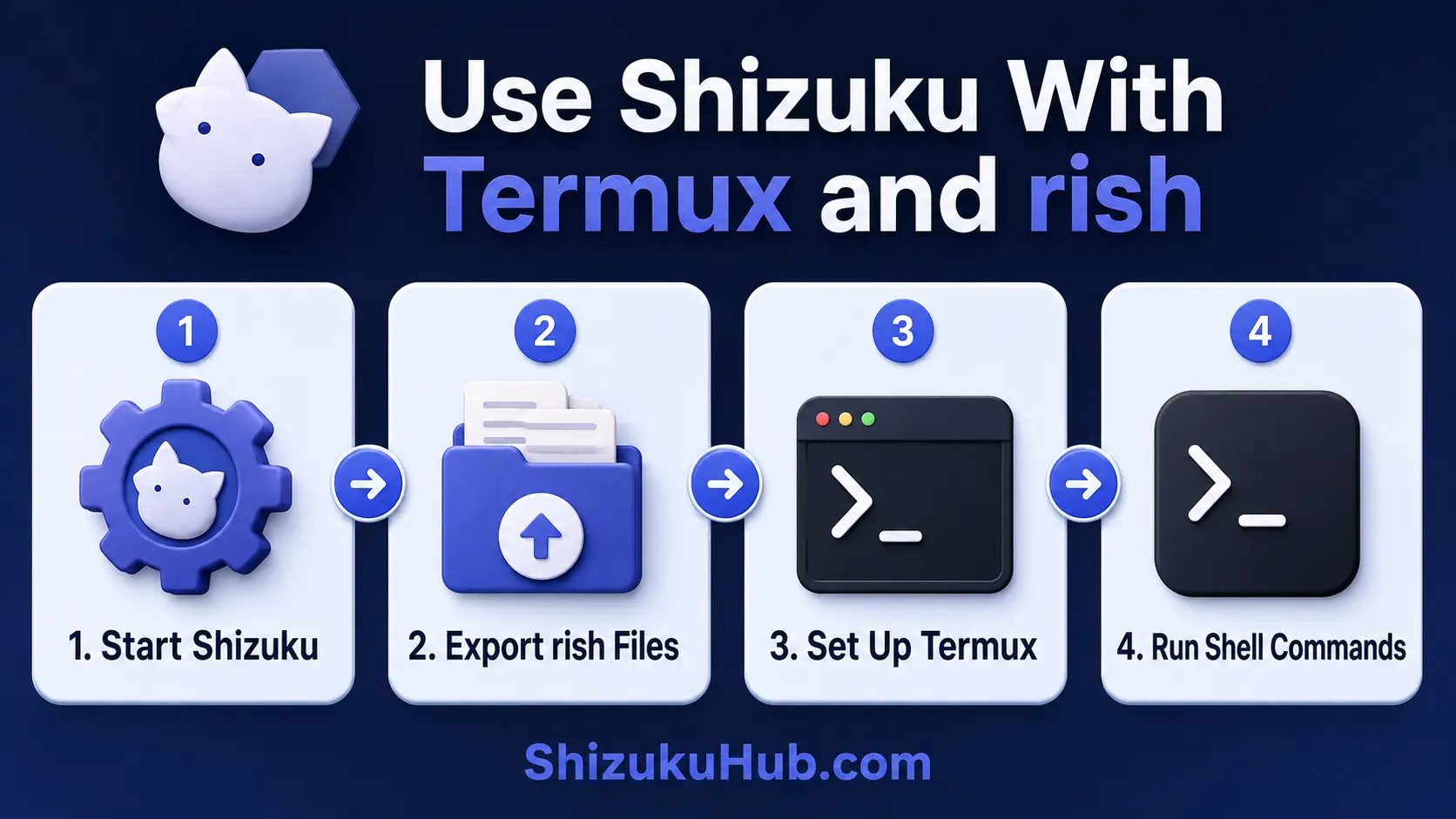
Step 1: Start Shizuku
Open Shizuku and confirm that its status says the service is running. If you want an entirely on-device method, follow the Shizuku without root setup. A reboot stops an ADB-started service, so start it again before using rish.
Step 2: Export the rish files
In Shizuku, open Use Shizuku in terminal apps, choose the option to export files, and select a folder Termux can read. The export should contain rish and rish_shizuku.dex. Do not rename only one file or separate the pair.
Step 3: Allow Termux to read shared storage
Open Termux and run the following once. Android will display a storage permission prompt:
termux-setup-storageAfter approval, shared storage is normally available through ~/storage/shared. If you exported the files to a folder named rish, verify it with:
ls ~/storage/shared/rishStep 4: Copy both files into the Termux bin folder
Copy the two files into Termux’s executable directory and make the launcher executable:
cp ~/storage/shared/rish/rish $PREFIX/bin/rish
cp ~/storage/shared/rish/rish_shizuku.dex $PREFIX/bin/rish_shizuku.dex
chmod +x $PREFIX/bin/rish
$PREFIX/bin is already part of the Termux PATH, so placing the files there lets you run rish from any Termux directory. If your export folder has a different name, adjust only that source path.
Step 5: Set the Termux application ID if required
Some exported scripts require RISH_APPLICATION_ID. For the standard Termux package, run:
export RISH_APPLICATION_ID=com.termuxIf rish reports that the application ID is missing, add that export line to ~/.bashrc or the startup file used by your chosen Termux shell. Users of a differently packaged terminal must use that app’s actual package ID instead of guessing.
Step 6: Test the connection safely
Start with read-only commands that identify the session:
rish -c 'id'
rish -c 'whoami'
rish -c 'getprop ro.build.version.release'
If Shizuku was started through ADB, the output should identify the Android shell user rather than the Termux app user. To open an interactive session, enter rish. Type exit to return to Termux.
Useful Shizuku Termux commands
Use rish -c 'command' when you want one Android shell command and an immediate return to Termux. These examples only read information:
| Command | Purpose |
|---|---|
rish -c 'id' | Show the active shell identity and groups |
rish -c 'pm list packages' | List installed Android package names |
rish -c 'dumpsys battery' | Read battery service information |
rish -c 'settings get system screen_brightness' | Read the current system brightness value |
rish -c 'getprop ro.product.model' | Read the device model property |
Shell access is powerful. Read a command and understand its target before running it. Do not paste destructive package, storage, permission, reboot, or factory-reset commands from unknown sources.
Why Termux commands may disappear inside rish
Termux binaries live in the app’s private directory. An ADB shell normally cannot enter that private path. Therefore commands installed with pkg may work at the normal Termux prompt but show command not found inside an interactive rish session.
This is expected. Run Android system commands through rish and run Termux packages at the normal Termux prompt.
What RISH_PRESERVE_ENV changes
RISH_PRESERVE_ENV=0 keeps the remote Android shell environment instead of replacing it with Termux’s environment. RISH_PRESERVE_ENV=1 replaces the remote variables with local ones.
For an ADB-started Shizuku backend, rish defaults to the safer remote environment behavior because Termux values such as PATH and LD_PRELOAD can point to private locations that the shell user cannot access.
Shizuku Termux and rish troubleshooting
Permission Denied when running rish
Run chmod +x $PREFIX/bin/rish. Also confirm that you copied the executable into Termux’s private bin folder instead of trying to execute it directly from shared storage, where Android mount options can block execution.
Cannot find rish_shizuku.dex
Place rish_shizuku.dex beside the rish script. Open the script with a text editor if needed and confirm that its DEX path points to the directory where both files were copied.
RISH_APPLICATION_ID is not set
Export the standard Termux ID with export RISH_APPLICATION_ID=com.termux, then retry. Make it persistent in your shell startup file only after the one-session test succeeds.
Shizuku service is unavailable or rish exits
Return to Shizuku and confirm that the service is running. If the phone restarted, follow our fixes for Shizuku not running after reboot. Keep Developer Options and wireless debugging enabled when that is your start method.
A command still says Permission Denied
rish provides the privilege level of the Shizuku daemon, not unlimited access. Android version, SELinux policy, OEM firmware, and the selected command can still restrict the shell user. On Xiaomi or POCO, USB debugging security options may be required. On some OPPO or OnePlus builds, permission monitoring can restrict ADB-level operations.
Termux says command not found
Use ls -l $PREFIX/bin/rish to confirm the file exists. If you kept it in the current directory instead, launch it as ./rish. Do not assume a shared-storage folder is in PATH.
Safe use and permission control
- Begin with read-only commands such as
id,getprop, and selecteddumpsysqueries. - Quote the complete remote command after
-cso the intended shell receives it. - Do not run commands that remove system packages, change permissions, or write settings until you understand how to reverse them.
- Restart Shizuku after every reboot before opening rish.
- Keep exported rish files private and do not replace them with scripts from random websites.
For GUI apps, Shizuku shows authorization requests that can be approved or revoked. See how Shizuku permission management works. rish is intended for users who already understand terminal commands, so the command itself is your responsibility.
Frequently asked questions
Start Shizuku before opening rish
Download Shizuku, start its service with the method supported by your Android version, and use the safe identity commands above to confirm the rish connection.