ANDROID DEBLOATING WITHOUT ROOT
How to Remove Bloatware With Shizuku Without Root
Use Shizuku with Canta, Package Manager, or aShell to remove unwanted Android apps for the current user while keeping root and the bootloader untouched.
Quick Answer
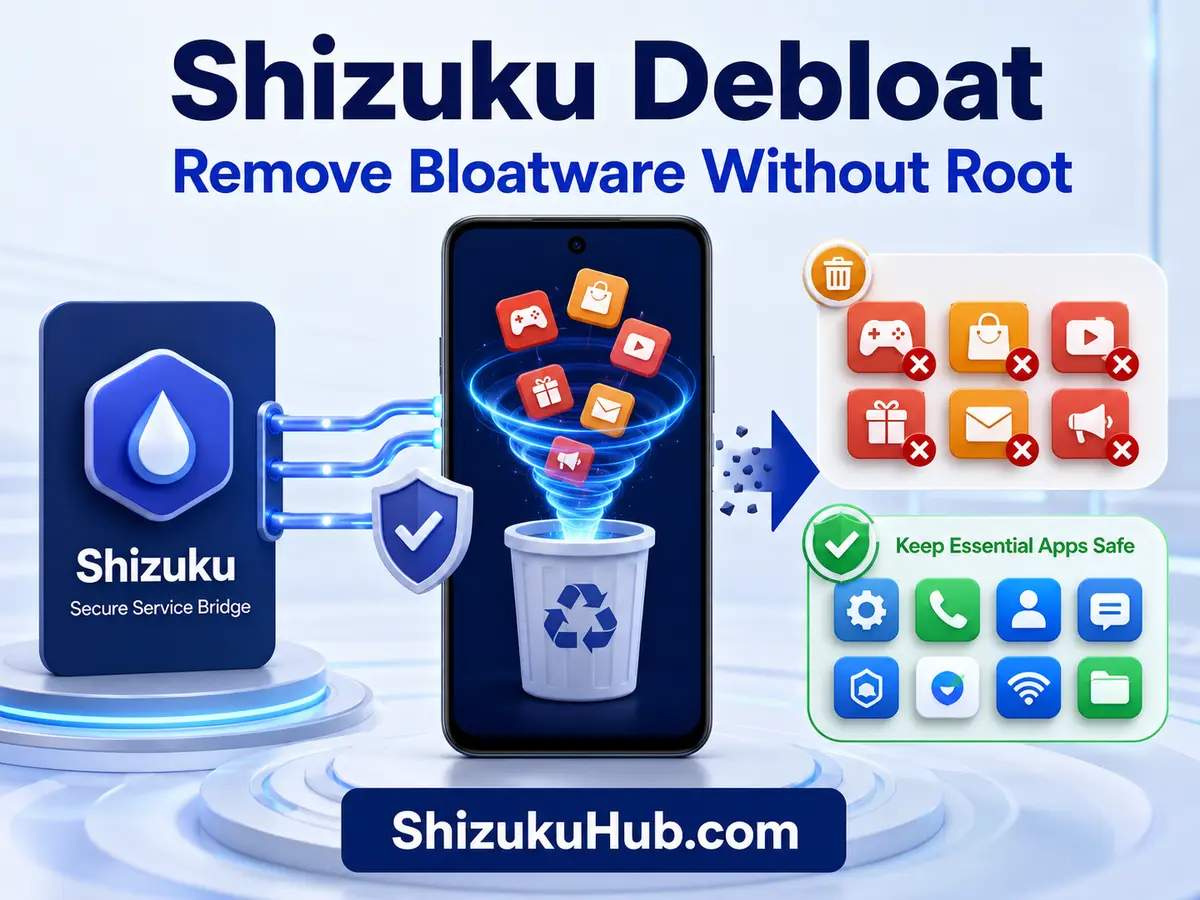
Shizuku debloat means using Shizuku’s ADB-level service to let a compatible app disable or uninstall selected packages for Android user 0. Start Shizuku Without Root, connect Canta, Package Manager, or aShell, review every package, remove only what you recognize, and keep a restore list. This method does not permanently root the phone.
What Counts as Android Bloatware?
Bloatware is an app or service installed by the phone maker, mobile carrier, or a software bundle that you do not use. Examples can include duplicate browsers, shopping apps, games, trial services, analytics packages, carrier tools, and manufacturer promotions. Some preinstalled apps look optional but provide system functions, so package names matter more than display names.
Debloating can reduce background activity, notification clutter, duplicate features, and the number of apps shown in the launcher. Storage savings may be limited because uninstalling a system app for user 0 usually leaves its original APK in the read-only system partition. The main benefit is a cleaner personal profile with fewer active packages.
✓
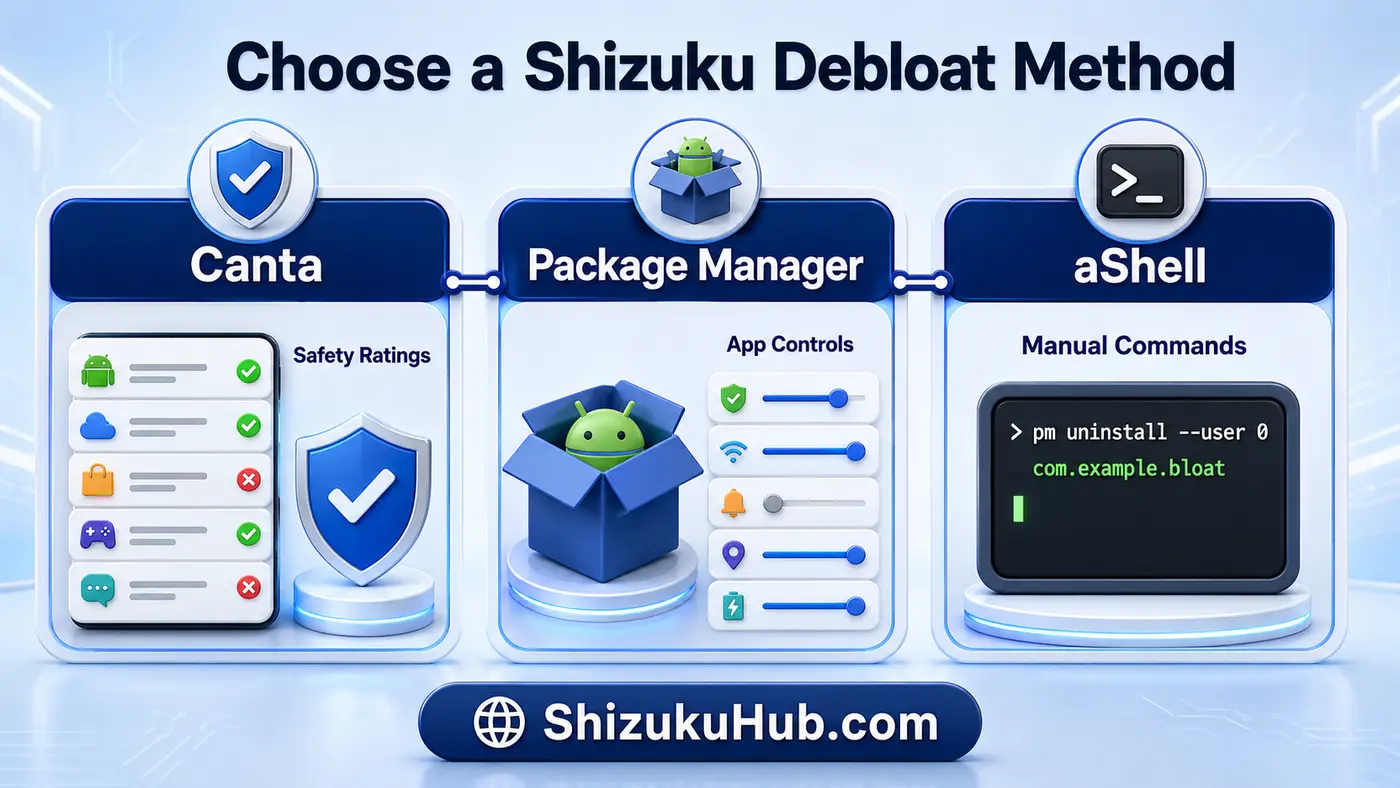
Canta
Best for beginners. Canta presents packages with community guidance, search, risk groups, and a restore view. Read every recommendation because safe choices vary by device and Android skin.
⌕
Package Manager
Best for detailed inspection. View package names, activities, permissions, installers, and system status before changing a package for the current Android user.
›_
aShell
Best for advanced users who want exact package-manager commands. It is powerful, fast, and easy to misuse if a package name is copied without checking.
What You Need Before Debloating
- The current Shizuku APK installed on your Android phone.
- Android 11 or newer for on-device Wireless Debugging, or a computer with ADB for older Android versions.
- A charged battery and stable Wi-Fi when using Wireless Debugging.
- Canta, Package Manager, or aShell with Shizuku support.
- A written or photographed list of every package you remove.
Wireless Debugging can be turned off after Shizuku starts, but the service normally stops after a reboot. Start it again before making more package changes.
Start Shizuku Without Root
Step 1: Install and Open Shizuku
Install Shizuku from this page, open it, and read the startup method shown for your Android version. Android 11 and newer can normally use on-device pairing.
Step 2: Enable Developer Options
Open Settings, find the software build number, and tap it repeatedly until Android confirms Developer Options are enabled. The exact menu path differs by brand.
Step 3: Pair Through Wireless Debugging
Enable Wireless Debugging, choose the pairing-code option, and enter the six-digit code in Shizuku. If pairing fails, use the fixes on our Shizuku Wireless Debugging page.
Step 4: Start the Service
Return to Shizuku and tap Start. Wait until the status says Shizuku is running before opening a debloat app.
Method 1: Debloat Android With Canta
Canta With Shizuku is the easiest approach for most people because it combines package removal with plain-language recommendations.
- Open Canta and approve its Shizuku permission request.
- Let the app load the installed package list, then use search or category filters.
- Open a package and read its description, recommendation, and warning level.
- Select only packages you understand. Start with one or two nonessential apps.
- Tap the uninstall action, confirm it, and test the phone before removing more.
Do not treat a community label as a guarantee. A package that is harmless on one brand can support calls, messages, gestures, themes, or account sync on another. Canta’s restore list makes reversal easier, but careful selection remains the safest strategy.
Method 2: Use Package Manager With Shizuku
A capable package manager shows more technical details than Canta. After granting Shizuku access, search by app label or package name, check whether the item is a system app, and inspect its permissions and activities. Use the uninstall-for-current-user option when available.
Package Manager is useful when two apps have similar names or when you need to confirm the real package behind a launcher icon. Avoid components with words such as framework, system UI, settings, telephony, permission controller, package installer, launcher, input method, connectivity, or provider unless reliable device-specific documentation says otherwise.
Method 3: Debloat With aShell Commands
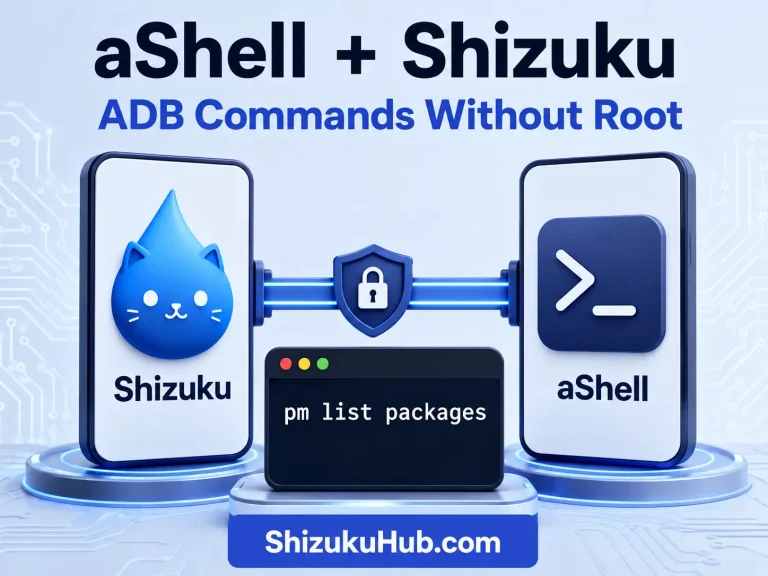
aShell can send package-manager commands through Shizuku without a computer. Approve Shizuku access, identify the exact package, and replace the example name below only after verifying it.
pm list packages
pm uninstall --user 0 com.example.optionalapp
cmd package install-existing com.example.optionalapp
pm list packages displays installed package identifiers. pm uninstall --user 0 removes a package from the primary Android user. cmd package install-existing restores an existing system package for that user. A typo can target the wrong package, so paste commands one at a time and read the result.
Safer Packages to Review First
Begin with clearly optional apps that you can identify from the launcher or the phone maker’s app list. Typical candidates include duplicate media players, retail apps, promotional games, unused cloud clients, trial security apps, carrier account utilities, manufacturer news feeds, and duplicate browsers.
Package names differ between Samsung, Xiaomi, Redmi, POCO, OnePlus, OPPO, Realme, Vivo, Motorola, Pixel, and carrier models. Never use a universal list blindly. Search the exact package plus your phone model, read more than one explanation, and remove a single item before testing calls, messages, camera, Bluetooth, Wi-Fi, banking apps, and system updates.
Packages You Should Not Remove
- System UI, Settings, Android Framework, or permission-controller packages.
- The active launcher, keyboard, package installer, WebView provider, or default dialer.
- Telephony, emergency alert, IMS, SIM, contacts storage, or messaging providers.
- Wi-Fi, Bluetooth, NFC, VPN, USB, credential, biometric, or account services.
- Camera providers, media storage, download manager, file picker, or document providers.
- Device policy, encryption, lock-screen, Find My Device, and OTA update components.
Removing a critical dependency can cause repeated crashes, missing settings, broken calls, or a phone that cannot reach the launcher. When uncertain, leave the package installed.
How to Restore a Removed Package
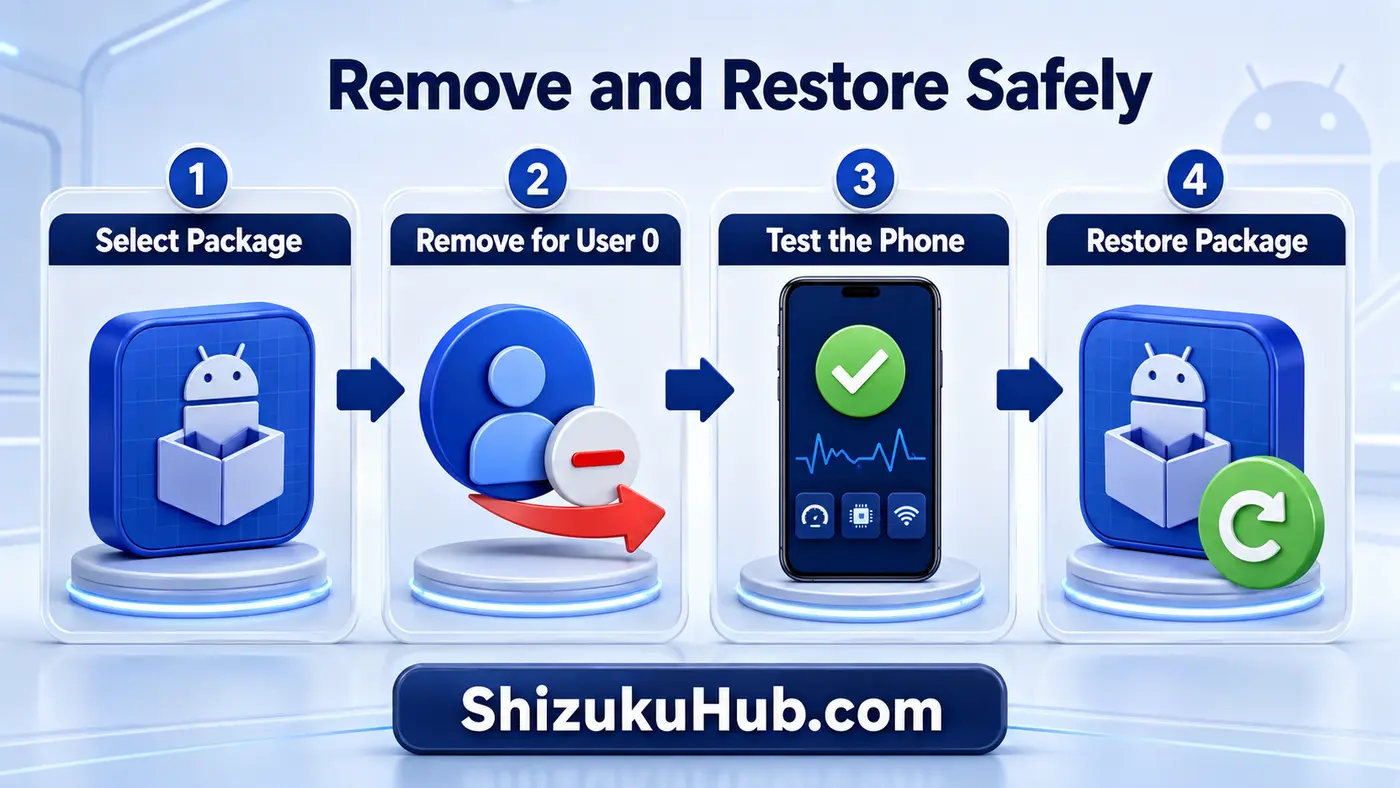
If an app was removed only for user 0, the original system APK normally remains in the firmware and can often be restored without downloading another file.
- Open the same debloat app and use its Removed or Restore section.
- In aShell, run the install-existing command with the exact original package name.
- Restart the phone after restoring a framework-adjacent component.
- Clear the restored app’s storage only if it opens with repeated errors.
If install-existing says the package does not exist, the app may be a downloaded user app rather than a system package. Reinstall it from your normal trusted source.
Brand-Specific Notes
Samsung One UI
Keep Samsung account, Knox-related security, phone, messages, settings, launcher, and system update components unless you know their dependencies. Optional Microsoft, promotional, and duplicate media apps are usually easier starting points.
Xiaomi, Redmi, and POCO
MIUI and HyperOS connect many services to Security, Themes, updater, permissions, and optimization features. Be conservative with packages containing miui, securitycenter, powerkeeper, msa, daemon, and systemui.
OnePlus, OPPO, Realme, and Vivo
ColorOS-derived systems share services across account, launcher, phone manager, themes, and cloud features. A package may appear unused but still supply a settings panel or background permission service.
Google Pixel and Motorola
These phones usually ship with fewer promotional apps, so the potential benefit is smaller. Focus on optional Google services you truly do not use and avoid core connectivity, WebView, setup, and permission components.
Verify Packages Before You Remove Them
A device-specific package explanation is more useful than a generic safe list. The Technastic Shizuku debloating walkthrough is a useful independent reference for understanding the Canta workflow. Still match every recommendation to your own brand, Android version, and installed features.
Shizuku Debloat Troubleshooting
Shizuku Is Not Running
Reopen Shizuku and start the service again. Reboots stop a non-root session. If the status will not stay active, follow our Shizuku Not Running After Reboot fixes.
The Debloat App Cannot Connect
Confirm Shizuku is running, reopen the companion app, and approve its permission request inside Shizuku. Revoke and grant permission again if the app remains disconnected.
A Package Will Not Uninstall
The package may be protected, required by the system, installed for another Android user, or controlled by device policy. Do not force removal when Android rejects a critical component.
An App or Feature Stopped Working
Restore the most recently removed package, restart the phone, and test again. If several items were removed together, restore them in reverse order until the feature returns.
Canta Shows No Description
Treat the package as unknown. Search its exact identifier with the phone model and Android skin, or leave it installed.
Final Safety Checklist
- Shizuku is running and the companion app has permission.
- The exact package name and its purpose have been verified.
- The package is not a core system, communication, security, installer, launcher, or provider component.
- Only one or two packages are removed before testing the phone.
- A restore record is saved.
- Calls, messages, camera, Wi-Fi, Bluetooth, banking apps, and updates still work.
Shizuku gives strong ADB-level access, not a guarantee that every removal is safe. Slow, documented changes are more reliable than aggressive one-click debloating.
Frequently Asked Questions
Clean Up Android Carefully
Download Shizuku, choose the method that matches your experience, and remove packages in small, reversible batches.