How to Use Canta With Shizuku to Remove Bloatware
Use Canta with Shizuku to remove unwanted Android apps without root or a computer. This complete walkthrough explains setup, safe package selection, restoration, and common fixes.
What Is Canta?
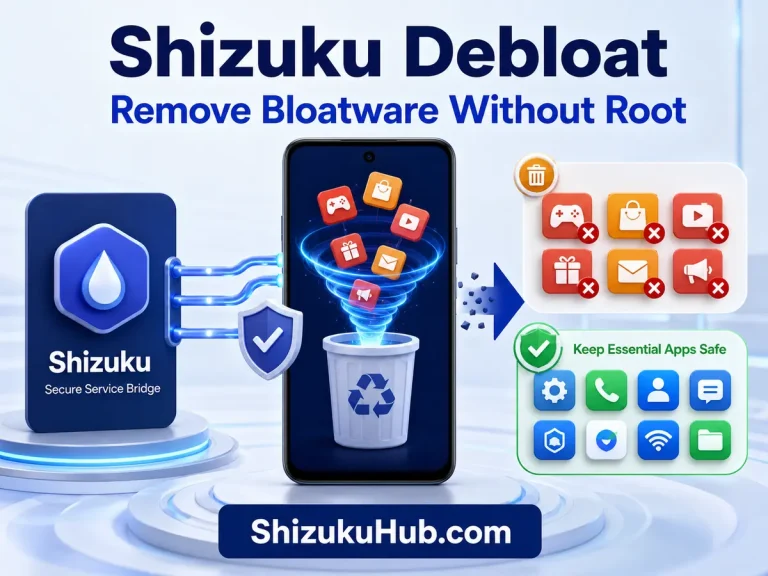
Canta is an open-source Android debloater that uses Shizuku to request elevated package-management access without permanently rooting the phone. It can list user and system packages, show descriptions and removal recommendations, uninstall selected packages for the current Android user, detect previously removed apps, and offer a restore action when Android still retains the original system package.
Canta works on Android 9 and newer, while the easiest no-computer Shizuku startup method requires Android 11 or newer. If Shizuku is not installed yet, download it from our Shizuku APK page. To understand other companion utilities, see Shizuku Supported Apps.
✓
No Permanent Root
Canta uses the running Shizuku service. It does not require bootloader unlocking, a patched boot image, or a root manager.
⌕
Package Guidance
Universal Android Debloater data helps identify packages and groups them by removal risk, purpose, and device vendor.
↻
Restore Removed Apps
Previously removed packages can usually be restored for the current user when the system image still contains the original APK.
What You Need Before Using Canta
- An Android phone running Android 9 or newer.
- The current Shizuku APK installed and showing Running.
- Wireless debugging on Android 11+, computer ADB on older versions, or optional root mode.
- The current Canta APK installed.
- A recent backup of important files and app data.
- Enough time to remove and test packages individually.
Canta itself does not start Shizuku. Complete the Shizuku Wireless Debugging setup first, then return to Canta. If you want the full no-root explanation, read Shizuku Without Root.
Download Canta APK
The current Canta release is 3.2.2, published in March 2026. It requires Android 9 or newer and uses the package name io.github.samolego.canta. The APK file is approximately 4.7 MB. Use the button below to download the APK directly. Before granting Shizuku access, confirm that the installed package name is io.github.samolego.canta.
SHA-256: 5a646d366905c0be2033aa270b008b3ef79fda99fbc95988445b0f430283a1ed
How to Connect Canta to Shizuku
Step 1: Start Shizuku
Open Shizuku and confirm its status says Running. On Android 11 and newer, start it through Wireless debugging. On Android 9 or 10, use the computer ADB method unless the phone is rooted.
Step 2: Install and Open Canta
Install the Canta APK, open the app, and read the initial warning. Canta needs Shizuku access before it can manage packages beyond normal Android uninstall controls.
Step 3: Allow Shizuku Permission
When the Shizuku authorization prompt appears, confirm that the requesting app is Canta and tap Allow all the time or the available allow option. You can review or revoke this permission later from Shizuku.
Step 4: Confirm the App List Loads
Canta should populate installed packages with app names, package names, descriptions, and recommendation labels. If the list remains empty, restart Canta after confirming Shizuku is running.
Safe Canta Debloating Workflow
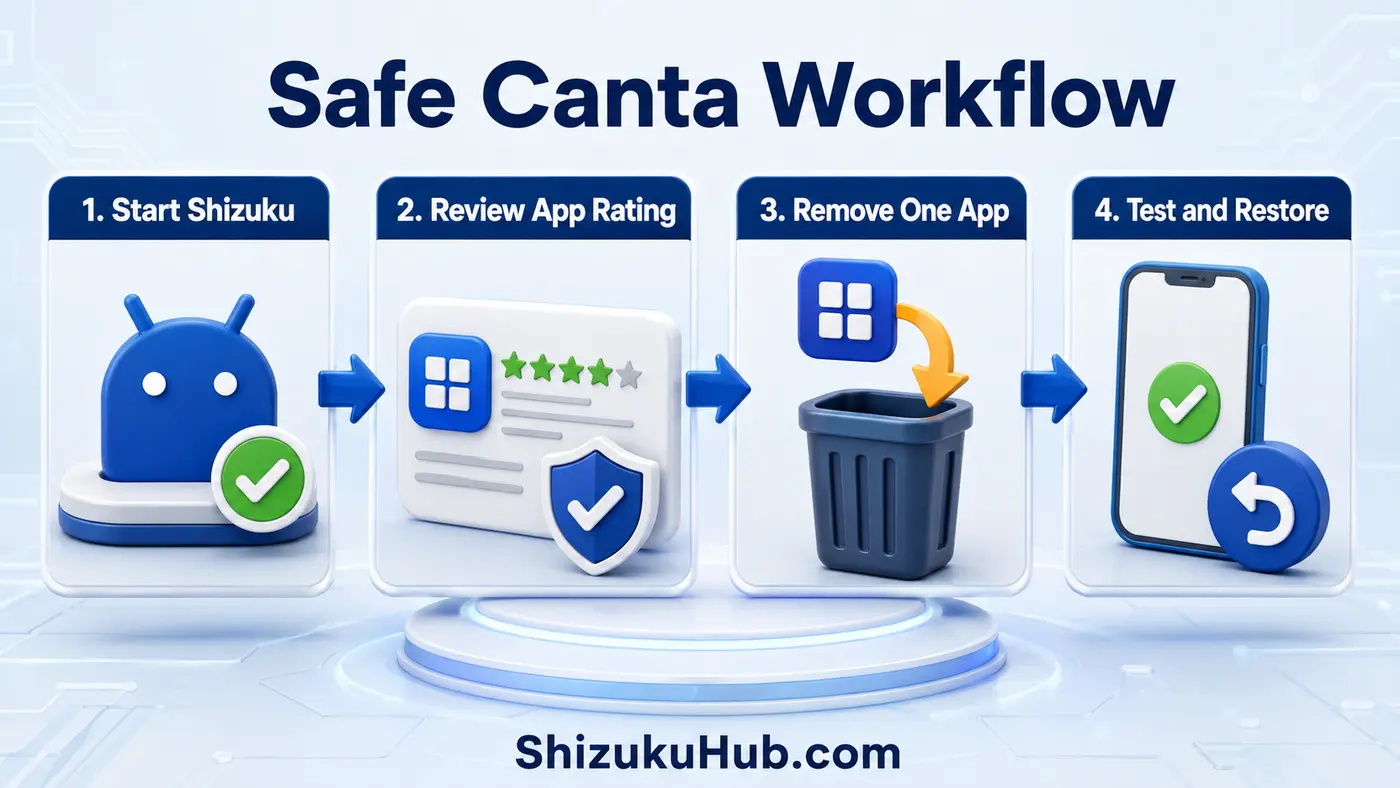
Step 1: Search for One Package
Use the app name or package name to locate a single item. Do not select a large preset during your first session.
Step 2: Read the Description and Rating
Open the package details, identify the vendor, read the recommendation, and check which phone feature depends on it. A familiar-looking icon is not enough evidence.
Step 3: Remove One Low-Risk App
Start with a clearly optional package marked Recommended, such as a preinstalled promotional app you never use. Tap the trash action and confirm the selected package.
Step 4: Test the Phone
Reboot the phone, make a call, send a message, connect to Wi-Fi and mobile data, open the camera, test notifications, and verify the features you normally use.
Step 5: Continue Slowly
Remove the next package only after the phone passes testing. Keeping a short list of removed package names makes later diagnosis much easier.
How Canta Removes System Apps Without Root
For most preinstalled packages, Canta asks Android’s package manager to uninstall the app for the current user profile. The original system APK commonly remains inside the read-only firmware partition, but it no longer runs or appears normally for that user. This is why a restore action can often enable the package again without downloading a separate APK.
This user-level removal can reduce app-drawer clutter, stop unwanted background processes, and free some user data. It does not rewrite the system partition, reduce the size of the firmware image, or guarantee a large storage gain. A factory reset or major system update may restore some packages.
Apps You Should Not Remove
- System UI, Android framework, package installer, permission controller, settings, or setup wizard.
- Phone, contacts storage, messaging, carrier services, IMS, SIM toolkit, emergency alerts, or network provisioning components.
- Default launcher, keyboard, gallery, or file picker before installing and testing a replacement.
- Biometric, lock-screen, account, backup, encryption, update, or device-policy services.
- Camera providers, media storage, Bluetooth, Wi-Fi, NFC, location, and notification services unless their exact dependency is understood.
- Packages marked Expert or Unsafe during a beginner debloat.
Do not remove an app only because its name looks unfamiliar. System packages often use technical names that do not reveal the visible feature they support.
How to Restore an App Removed With Canta
Step 1: Start Shizuku Again
If the phone was restarted, open Shizuku and confirm the service is running. Use Shizuku Not Running After Reboot when the service remains stopped.
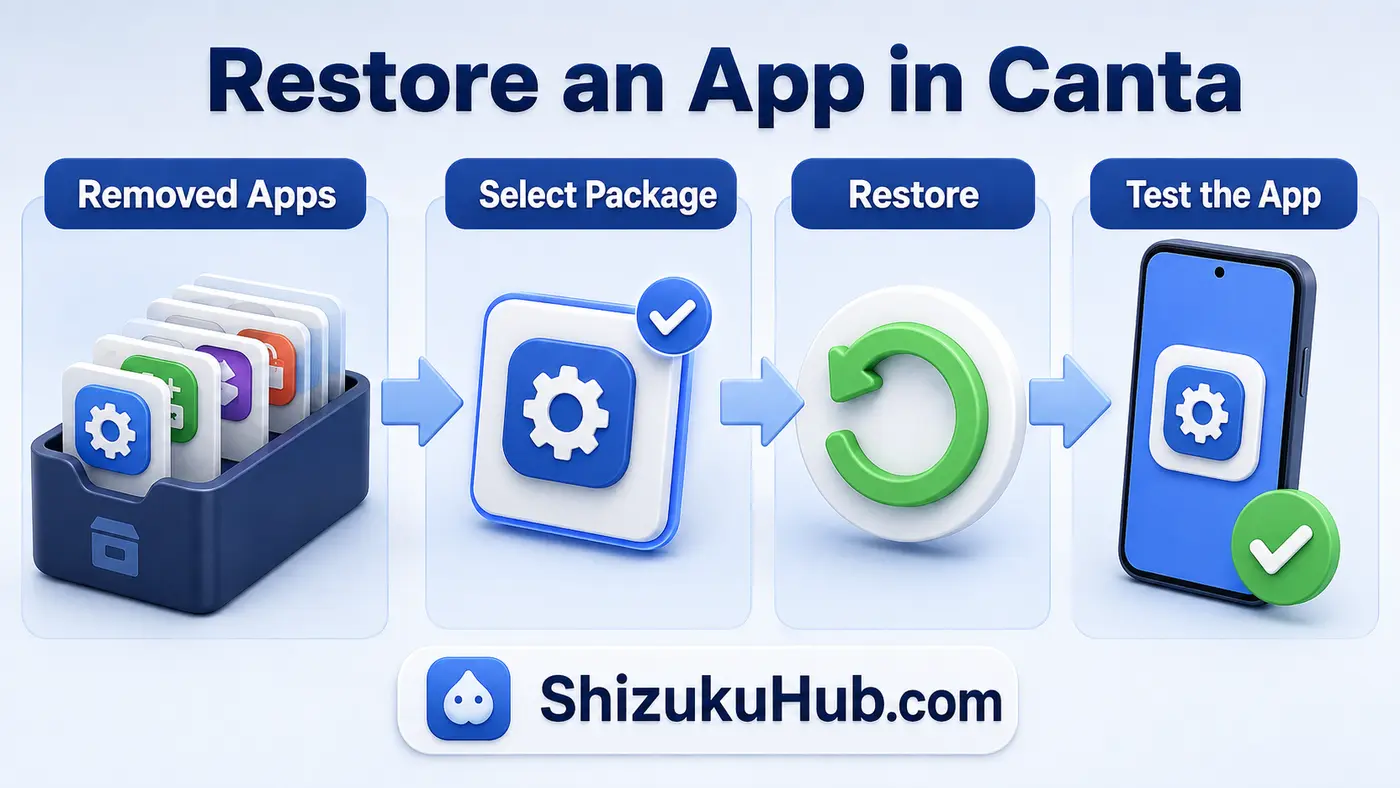
Step 2: Open the Removed Apps List
Launch Canta and switch to the removed or uninstalled-app view. Search for the package name you recorded earlier.
Step 3: Select Restore
Open the package and use the restore action. Android should reinstall or enable the retained system package for the current user.
Step 4: Reboot and Test
Restart the phone and test the affected feature. Clear the restored app’s cache only if it still behaves incorrectly. A factory reset is the last resort when a critical package cannot be restored normally.
Device-Specific Debloating Notes
Samsung: Be careful with One UI Home, Galaxy Store dependencies, Samsung account services, Knox, SmartThings components, Edge features, camera providers, and Samsung keyboard. Remove optional promotions before framework services.
Xiaomi, Redmi, and POCO: MIUI and HyperOS split security, themes, package installation, account, optimization, and launcher features across many packages. Avoid bulk-removing system components just because they contain Xiaomi or MIUI in the package name.
OnePlus, OPPO, and Realme: Some OPlus packages resist user-level uninstallation or return after an update. Do not keep repeating removal attempts against protected packages.
Pixel and AOSP-Based Phones: The package list is often shorter, but core Google, connectivity, permission, and launcher components can still break essential features.
Canta and Shizuku Troubleshooting
Canta says Shizuku is unavailable: Start Shizuku first, close Canta completely, and reopen it. Confirm Canta is authorized inside Shizuku.
The app list is empty or descriptions do not load: Check the internet connection used to obtain updated package descriptions, reopen Canta, and verify the selected user/system filters. Package management may still work even when descriptions are temporarily unavailable.
Uninstall fails: The package may be protected by the manufacturer, required by another user profile, or restricted by device policy. Do not force repeated removal of a protected system component.
A removed app returns: A firmware update, factory reset, new user profile, or manufacturer repair process can reinstall bundled packages. Review the package again before removing it.
Canta loses access after reboot: The permission can remain listed, but Shizuku’s no-root service must be started again. Restart Shizuku and then reopen Canta.
What Debloating Can and Cannot Improve
Removing optional carrier tools, duplicate stores, promotional apps, analytics clients, trial games, and unused vendor services can reduce clutter, notifications, background activity, and some battery or data usage. The improvement depends on whether those packages were actually active.
Debloating cannot upgrade weak hardware, replace proper storage cleanup, fix a failing battery, or safely turn every system app into free space. Aggressive removal often causes more trouble than it solves. A short, tested package list is better than the highest possible removal count.
Safety Checklist Before You Remove Anything
- Back up photos, files, authenticator data, and important app information.
- Keep the lock screen, Settings, package installer, System UI, and connectivity packages untouched.
- Remove only one or a few Recommended packages at a time.
- Record every package name before confirming removal.
- Keep a working launcher, keyboard, file picker, gallery, and browser installed.
- Reboot and test calls, mobile data, Wi-Fi, Bluetooth, camera, notifications, and payments.
- Restore the last removed package when a problem begins.
Canta reduces the need for manual ADB commands, but it does not make every package safe. The person choosing the package still controls the risk.
Frequently Asked Questions
Start a Safer Android Debloat
Download Shizuku, start its service, install Canta, and remove only packages you understand. Keep a record so every change can be reversed quickly.