
FREEZE APPS WITHOUT PERMANENT ROOT
How to Use Hail With Shizuku to Freeze Apps
Hail can freeze Android apps you do not want running or appearing normally. Connect Hail to Shizuku and you can force-stop, disable, or suspend selected apps without permanently rooting your phone.

What are Hail and Shizuku?
Hail is an Android app freezer. It manages selected packages so they remain unavailable until you choose to unfreeze them. Shizuku gives compatible apps controlled access to Android shell-level capabilities. Together, Hail Shizuku mode provides practical app freezing without installing a root manager or modifying the boot image.
This setup is useful for stopping rarely used apps, vendor utilities, games, shopping apps, and social apps from staying active when you do not need them. It is different from uninstalling because the APK and app data normally remain on the device. If you are new to the service, read how Shizuku works without root before changing app states.
❄
Freeze on demand
Freeze selected apps immediately and unfreeze them when you want to use them again.
✓
No permanent root
Android 11 and newer can start Shizuku through wireless debugging on the phone itself.
↻
Fully reversible
Unfreeze an app with the same working mode and its package becomes available again.
What you need before using Hail with Shizuku
- An Android phone with Hail and Shizuku installed.
- Android 11 or newer for the easiest wireless-debugging method. Older versions can use computer ADB.
- Developer Options and USB debugging or Wireless debugging enabled for Shizuku startup.
- Shizuku service running before you open Hail.
- A clear list of user apps you want to freeze. Avoid selecting critical system components.
If the service is not ready, complete the wireless debugging setup first. Shizuku usually needs to be started again after a phone reboot, so confirm its status before troubleshooting Hail.
Six steps to use Hail with Shizuku
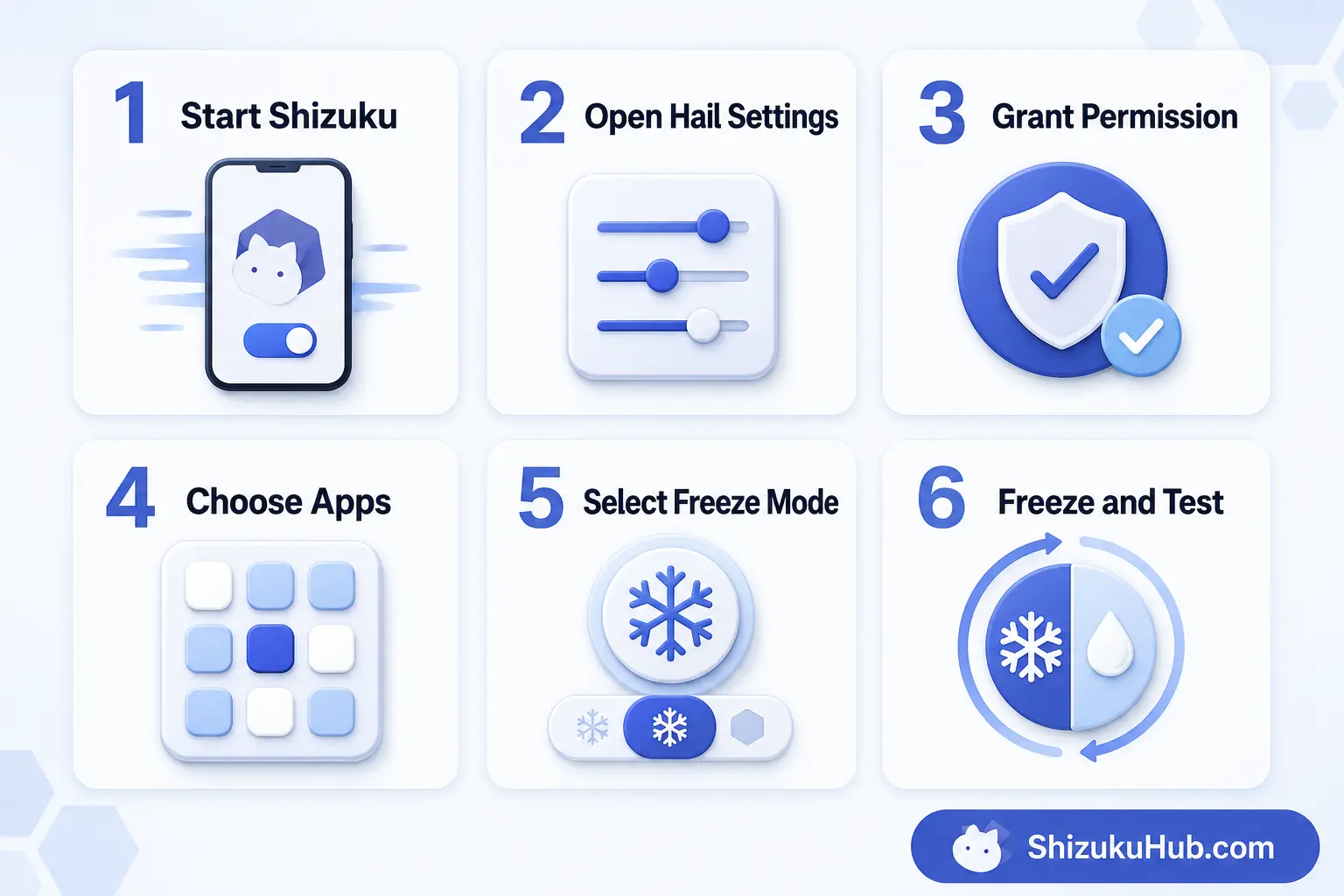
How to use Hail with Shizuku step by step
Complete these six steps in order. Test one ordinary user app first before managing several packages.
STEP 1
Start Shizuku
Open Shizuku and confirm the service status says Running. Use wireless debugging on Android 11 or newer, or computer ADB on older devices.
STEP 2
Open Hail Settings
Launch Hail, open its working-mode setting, and select Shizuku. Hail should immediately request access from the running service.
STEP 3
Grant Permission
Approve Hail in the Shizuku permission prompt. Authorize only the Hail installation you intentionally installed and can identify.
STEP 4
Choose Apps
Select non-essential user apps and add them to Hail’s Home list. Begin with one app so the result is easy to test and reverse.
STEP 5
Select Freeze Mode
Choose Disable for a strong freeze, Suspend to block interaction while keeping the icon, or Force Stop for a temporary process stop.
STEP 6
Freeze and Test
Freeze the app, check its launcher state, then unfreeze it once. Confirm that it opens normally and its saved data remains available.
Disable, suspend, or force stop: which method should you use?
| Method | What changes | Best use |
|---|---|---|
| Disable | App becomes disabled and normally disappears from the launcher. | Apps you rarely need and want fully unavailable until manually enabled. |
| Suspend | App interaction is blocked and notifications are hidden, but suspension alone may not stop every background process. | Apps you want visibly present but temporarily inaccessible. |
| Force Stop | Stops the current app process without changing its enabled state. | A quick temporary stop when you do not want to disable the package. |
Hail’s freeze behavior is more immediate and user-controlled than Android’s automatic unused-app feature. Android Developers explains that system app hibernation occurs after long periods of inactivity and can reset permissions or restrict background work. Hail lets you choose the package and timing yourself.
Apps you can usually freeze
- Games you play occasionally
- Shopping and food-delivery apps
- Social apps you want inactive during work
- Manufacturer utilities you have verified are optional
- Streaming apps not needed in the background
Apps you should not freeze casually
- System UI, launcher, Settings, or package installer
- Phone, contacts provider, messaging, or emergency components
- Keyboard, accessibility, VPN, or password-manager services you actively use
- Device policy, work-profile, or parental-control components
- Any package whose purpose you do not understand
Hail Shizuku mode not working: common fixes
Hail says Shizuku is unavailable
Open Shizuku and confirm its service is running. If the phone restarted, use the steps for starting Shizuku after reboot, then reopen Hail.
Permission request does not appear
Open Shizuku, review authorized applications, remove an old Hail authorization if present, and select Shizuku mode again inside Hail.
An app does not disappear
Check which freeze method is selected. Suspend can leave an icon visible in grayscale, while Disable normally removes it from the launcher. Launchers may also need a few seconds to refresh.
Frozen app returns after reboot
Confirm both Shizuku and Hail are available again. Some vendor systems aggressively restore packages or restrict background automation. Test manual freeze first before enabling any automatic behavior.
Cannot unfreeze an app
Use the same Hail working mode that originally froze it. If the original mode is no longer available, restart Shizuku and reconnect Hail before trying again.
Best practices for reliable app freezing
- Freeze ordinary user apps first and test one package at a time.
- Keep Shizuku excluded from aggressive battery optimization if your phone stops it unexpectedly.
- Do not mix working modes for the same frozen app.
- Unfreeze apps before uninstalling Hail or changing its working mode.
- Keep banking, authentication, alarm, and communication apps active when you rely on their notifications.
- Review the broader Shizuku-compatible app list before granting access to additional tools.
Hail with Shizuku FAQ
Start Shizuku and connect Hail
Download Shizuku from ShizukuHub, start the service using the method for your Android version, and then authorize Hail.





Hi can you make a tutorial how to use App Froster Pro with shizuku? Very much appreciated