ANDROID STORAGE • NO ROOT REQUIRED
Shizuku File Manager Apps for Android/data and OBB
Use a compatible Shizuku file manager to browse, copy, move, rename, extract, or delete files inside restricted Android/data and OBB folders without permanently rooting your phone. This complete walkthrough explains which apps work, how access differs from normal storage permission, and how to fix common errors.
Why Android/data and OBB Are Restricted
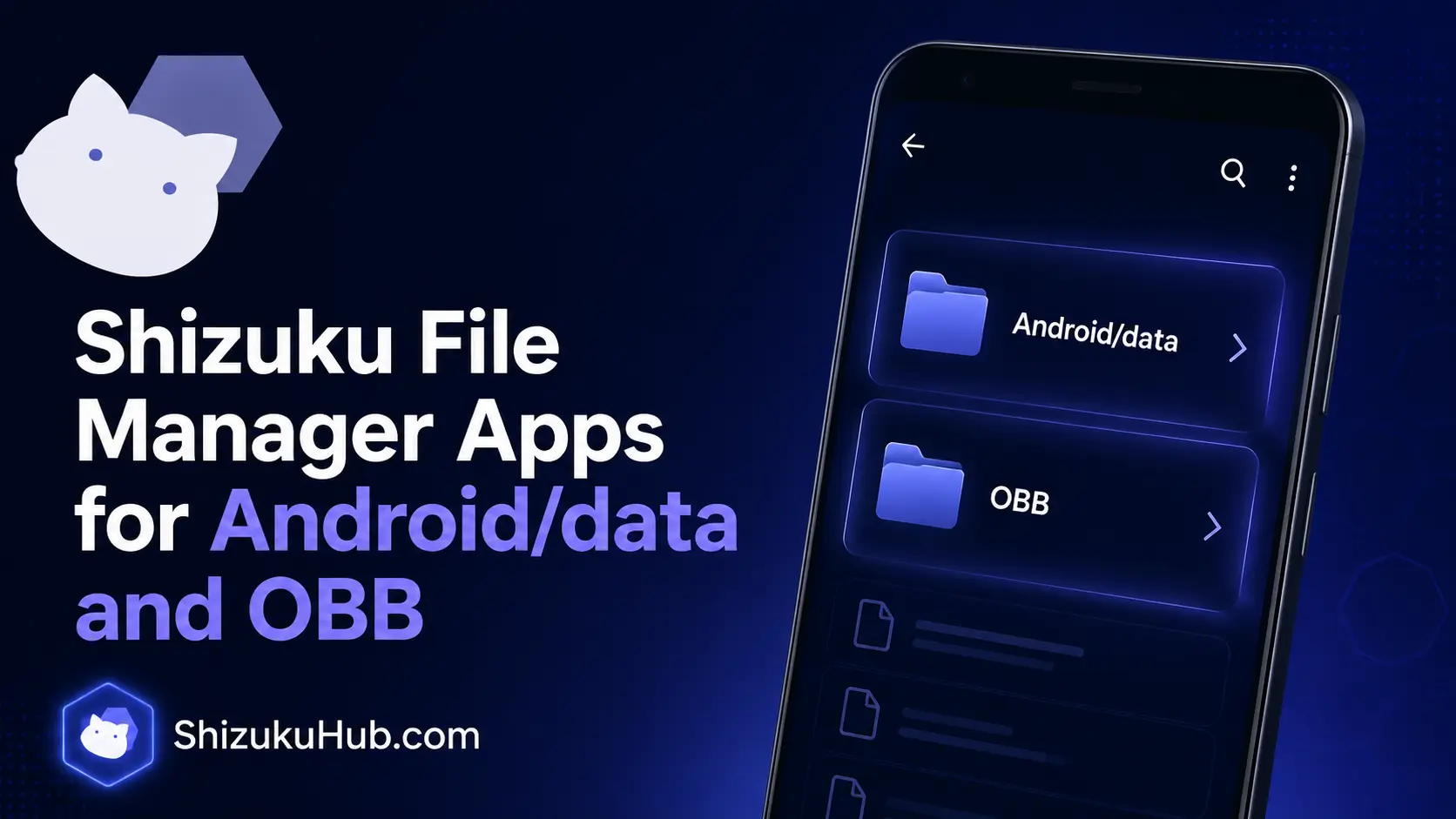
Android 11 introduced stricter scoped-storage behavior. A normal file manager can manage shared files such as photos, downloads, and documents, but it cannot freely read or write another app’s external data directory. Android/data commonly holds app caches, downloaded resources, settings, and game saves. Android/obb usually stores large expansion packages used by games and media-heavy apps.
The Android Open Source Project documentation on scoped storage explains that apps do not receive normal read or write access to other apps’ external data directories. This privacy boundary is the reason a regular storage permission or “All files access” may still show an empty folder on recent Android versions.
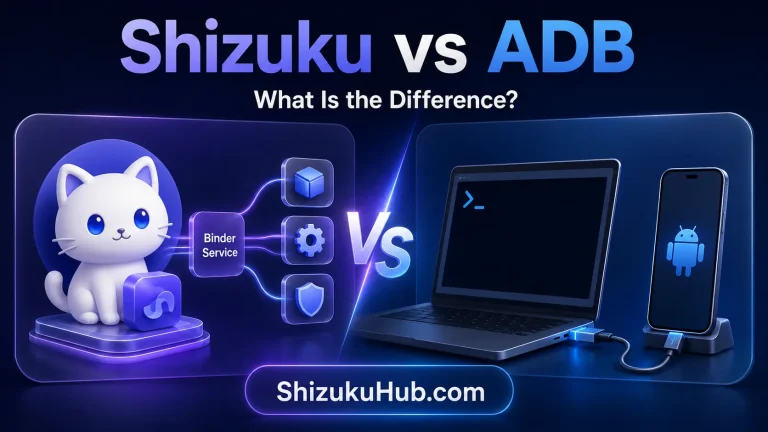
Shizuku does not remove Android security or grant full root access. It starts a service with ADB shell-level privileges and lets an approved file manager call supported operations through that service. The result depends on the Android release, security patch, manufacturer changes, and the file manager’s implementation.
⌁
No Permanent Root
Shizuku uses temporary ADB shell access. It does not unlock the bootloader, flash a patched boot image, or install a superuser manager.
▣
Protected Folder Access
A compatible app can request Shizuku permission and use shell-level operations for Android/data and Android/obb where ordinary access is blocked.
✓
Per-App Approval
You decide which file manager may connect. Permission can be denied or revoked from Shizuku’s Authorized Applications screen.
Best Shizuku File Manager Apps
The strongest choice is the app that explicitly supports Shizuku for restricted folders. A normal file explorer is not automatically compatible simply because Shizuku is installed. The following options document Shizuku support in their own help pages or release notes.
1. ZArchiver
ZArchiver is a practical choice for users who regularly open ZIP, 7Z, RAR, and other archives. Its settings include a Shizuku access type for Android/data and OBB. Once authorized, it can browse restricted subfolders and perform supported file creation, deletion, extraction, and compression operations. Android may still restrict arbitrary folder names directly under Android/data, so work inside the correct installed app package folder.
2. X-plore File Manager
X-plore offers a dual-pane layout that is useful when moving files between Downloads and a protected app folder. Shizuku support is available in X-plore 4.36 and newer. When the service is running, X-plore asks for authorization and marks protected Android folders with its Shizuku indicator. Its two-panel interface makes source and destination paths easier to compare before a copy or move.
3. Total Commander for Android
Total Commander is suitable for users who prefer a compact two-panel manager, batch selection, archive tools, bookmarks, and plugins. Version 3.60 added enhanced access to special folders through Shizuku and support for Android 15 and 16. Install a current release because an older build may not expose the Shizuku workflow.
4. AndroidFolderExplorer
AndroidFolderExplorer is a focused open-source option built for restricted application directories. Its documented access method uses regular storage permissions on older Android versions, All files access on Android 11 to 13, and Shizuku on Android 14 and newer. It is more specialized than a full-featured daily file manager, so it suits users who mainly need to browse, copy, or move items from Android/data and OBB.
For more tools that use the same service for app management, backup, installers, permissions, and automation, see our Shizuku supported apps collection.
Which Shizuku File Manager Should You Choose?
| App | Best For | Main Strength | Important Note |
|---|---|---|---|
| ZArchiver | Archives and game files | Compression and extraction inside protected subfolders | Enable Shizuku in its root-access settings |
| X-plore | Visual file transfers | Dual-pane copy and move workflow | Use version 4.36 or newer |
| Total Commander | Power users and batch work | Two panels, plugins, bookmarks, and multi-select | Use a current build with enhanced Shizuku access |
| AndroidFolderExplorer | Focused restricted-folder access | Simple browsing and extraction of protected app files | Availability and support are more limited than mainstream apps |
If you only need to extract a game archive, ZArchiver is usually the simplest fit. Choose X-plore when you want a clear source-and-destination view. Total Commander is better for repeated batch operations, while AndroidFolderExplorer is a focused alternative for restricted folders.
How to Access Android/data and OBB With Shizuku
01
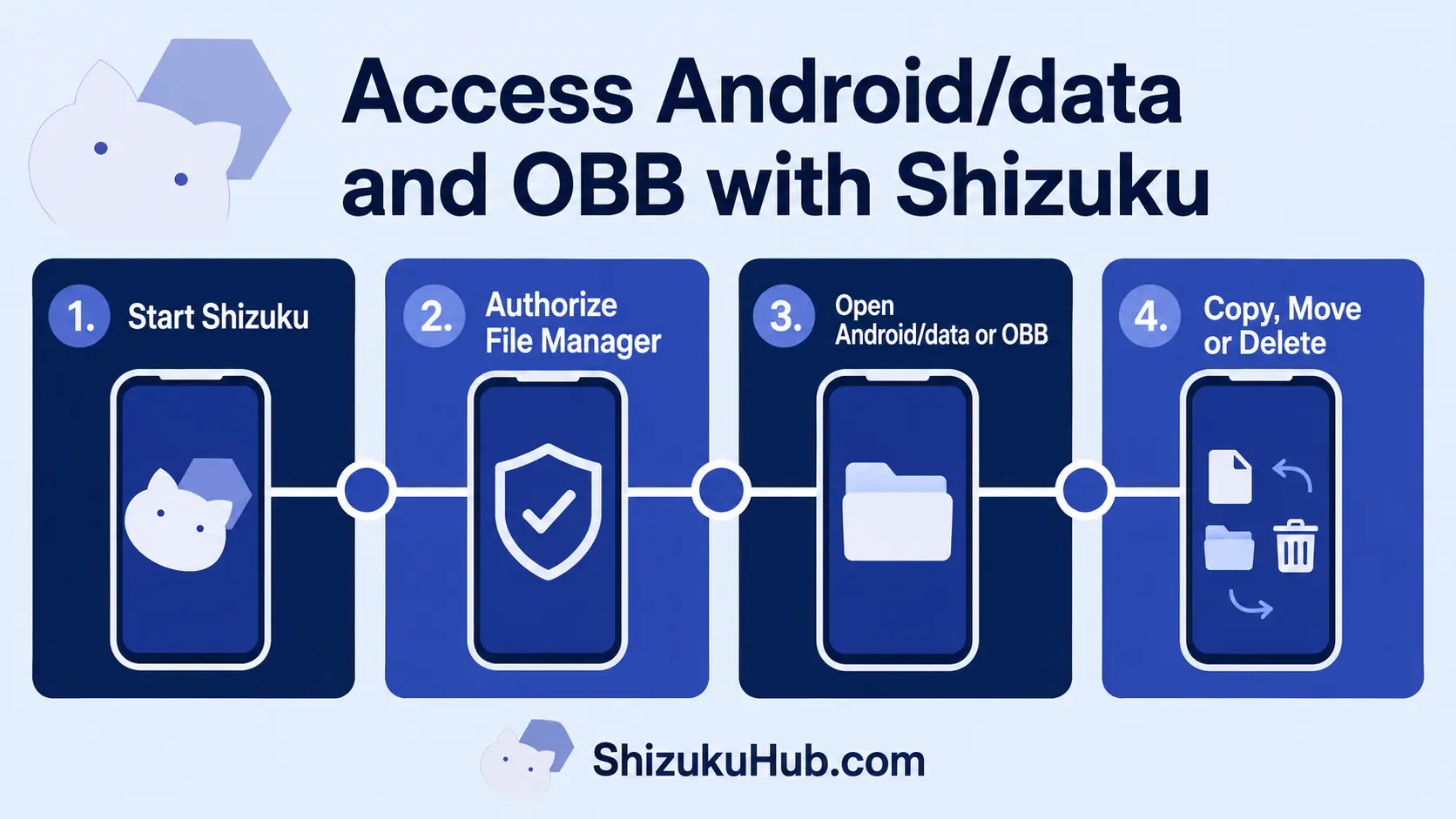
Download and Start Shizuku
Install Shizuku from this website, then start its service. On Android 11 and newer, the quickest no-PC method is Shizuku wireless debugging. Android 10 and older generally need a computer, unless the device is rooted.
02
Install a Compatible File Manager
Choose a current version of ZArchiver, X-plore, Total Commander, or another app that explicitly documents Shizuku support. Open its settings and enable Shizuku access if the option is not enabled automatically.
03
Approve the Permission Request
When the file manager requests Shizuku access, tap Allow. If no prompt appears, open Shizuku, confirm the service says Running, and check Authorized Applications. Reopen the file manager after changing permission.
04
Open the Correct Folder
Browse to Internal storage › Android › data or Internal storage › Android › obb. Open the package folder that belongs to the target app. Package names resemble com.example.app, so confirm the destination before editing anything.
05
Copy, Move, Extract, or Delete
Create a backup before replacing important data. For game resources, close the target app first. Copying is safer than moving because the source remains available if the destination is wrong or the operation is interrupted.
06
Verify the Result
Refresh the destination, compare file size and folder name, then launch the target app. Restore your backup if the app fails to load. Restart Shizuku after each phone reboot before doing another protected-folder operation.
Shizuku vs SAF, All Files Access, ADB, and Root
- Storage Access Framework: Android’s system picker can grant access to ordinary folders and external SD cards, but Android 11 and newer block selecting the Android/data and Android/obb roots.
- All files access: This broad permission helps legitimate file managers handle shared storage, yet it does not guarantee access to every protected app directory on current Android builds.
- Shizuku: A compatible app uses temporary ADB shell-level capabilities without permanently rooting the phone. The service normally stops after reboot.
- Computer ADB: Direct commands can perform controlled operations from a computer. Our Start Shizuku with ADB walkthrough covers the setup.
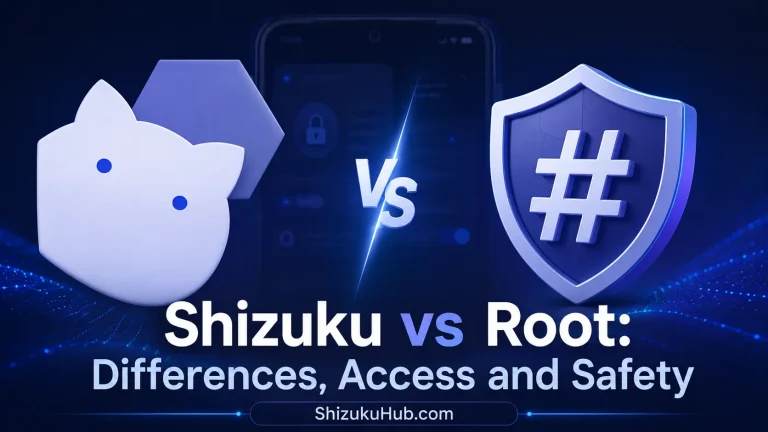
- Root: Full superuser access is more powerful and persistent, but it carries greater security, warranty, and maintenance implications.
If your aim is restricted folder access without altering the bootloader, read how to use Shizuku without root before selecting a file manager.
Safe File Management Practices
- Back up the original folder before replacing saves, settings, maps, or game resources.
- Close the target app before changing its data or OBB files.
- Confirm the full package folder name instead of relying only on a similar-looking app name.
- Copy first and delete the source only after the destination has been verified.
- Do not edit unknown configuration, database, or account files.
- Revoke Shizuku access for file managers you no longer use.
Shizuku cannot decrypt protected internal data, recover deleted files, defeat device encryption, or expose information that the shell user itself cannot access. It simply provides a controlled bridge for operations that the chosen app has implemented.
Troubleshooting Shizuku File Manager Access
Android/data or OBB Looks Empty
Confirm Shizuku is running and the file manager is authorized. Enable the app’s specific Shizuku option, close it fully, and reopen it. Empty folders can also be caused by a security patch or vendor restriction that the installed app version does not yet support.
The Shizuku Permission Prompt Does Not Appear
Open Shizuku › Authorized Applications and check whether the app is listed. Revoke and request permission again if necessary. If it never appears, the file manager may not include Shizuku support or may require the feature to be enabled in settings first.
Files Can Be Viewed but Not Edited
Read and write capabilities can differ. Verify the app has selected Shizuku rather than normal SAF access. Android may prevent arbitrary package-folder names directly under Android/data even though files inside an existing package folder can be modified.
Shizuku Stopped After Restarting the Phone
This is expected for non-root startup methods. Start the service again and then reopen the file manager. Use the fixes on our Shizuku not running after reboot page if pairing or startup fails.
OBB Folder Is Missing
Some modern apps download resources into another location or no longer use OBB expansion files. Launch the target app once, let its download finish, then refresh the folder. A package folder may not exist until the app creates it.
External SD Card Is Read-Only
Shizuku permission for protected internal folders does not automatically grant write access to a removable card. Use the system folder picker to grant the file manager access to the SD card root, then retry the operation.
Frequently Asked Questions
Manage Android/data and OBB Without Permanent Root
Download Shizuku, start its service with the method that matches your Android version, and authorize only the file manager you trust.