ANDROID POWER TOOLS • NO-ROOT WORKFLOWS
What Can You Do with Shizuku?
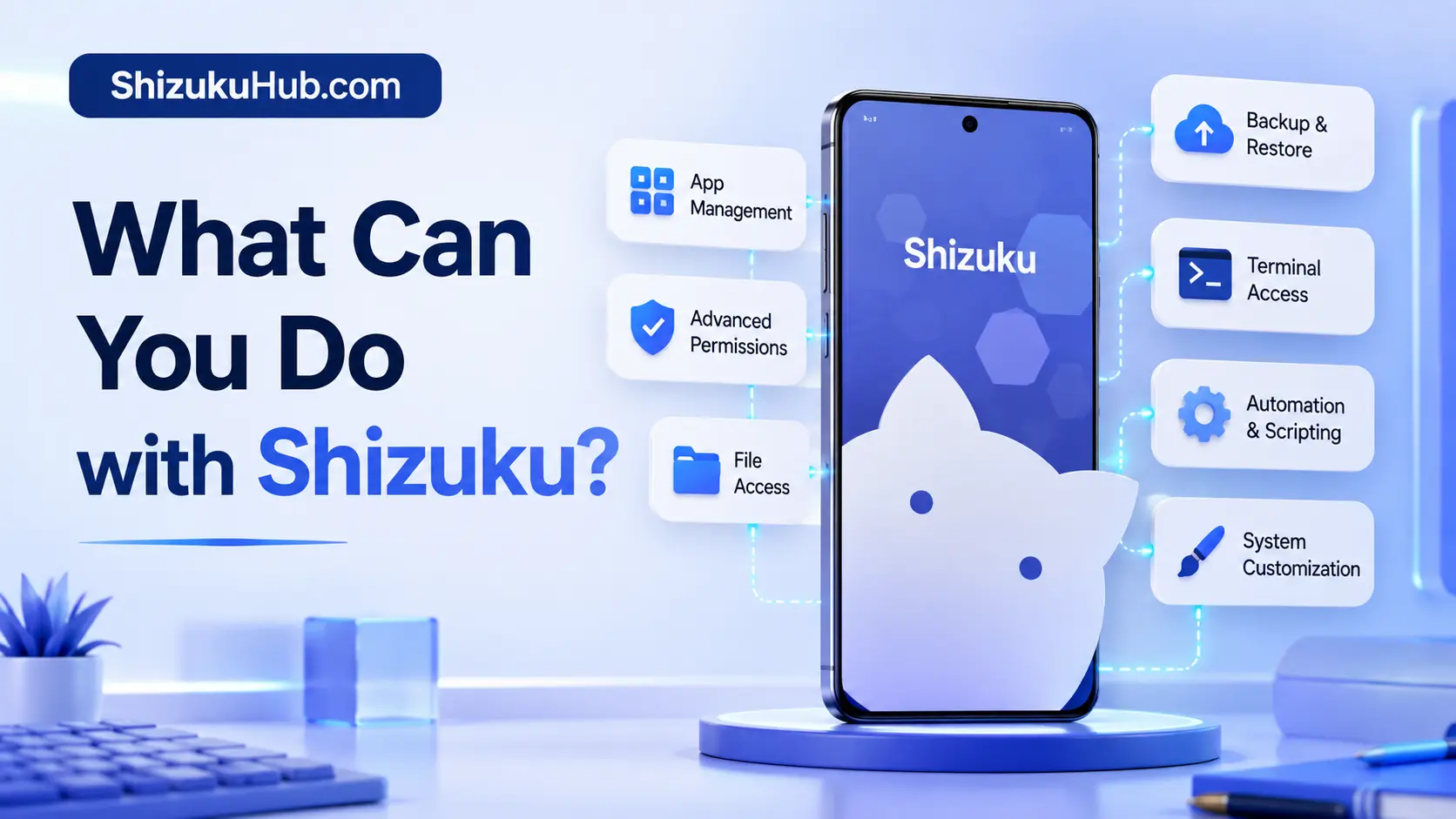
Popular Shizuku uses include package management, permission control, protected-folder access, shell commands, backups, and automation. Shizuku turns a running ADB or root service into a permission bridge for compatible Android apps. You can manage packages, control permissions, access restricted folders, run shell tasks, freeze apps, improve backups, and automate advanced actions without permanently rooting a supported phone.
What does Shizuku actually let you do?
Shizuku lets supported apps use Android system APIs with ADB-shell or root-level service access, depending on how the service was started. It does not add a single list of features by itself. The useful feature comes from each companion app that connects to Shizuku and requests a specific operation.
For most non-root users, the practical result is a set of power-user tools that can manage packages, permissions, files, shell commands, backups, and automation more effectively than ordinary Android apps. Shizuku remains the bridge, while the companion app provides the interface and decides what action to request.
A regular app that has no Shizuku integration receives no benefit merely because Shizuku is installed. Start by choosing a supported app for one clear goal, then approve access only when the requested feature makes sense.
How Shizuku unlocks these features
Android isolates apps inside sandboxes and protects many system services. A normal third-party app cannot freely manage other packages or call every privileged API. Shizuku starts a service through wireless debugging, computer ADB, or root and exposes a controlled interface to apps built for its API.
In the common no-root setup, Shizuku usually runs with the Android shell user privileges used by ADB. This provides more capability than ordinary app access but remains below full root. Manufacturer policies, SELinux, Android version changes, and the exact permissions available to the shell user still apply.
01
Remove Bloatware
A trusted debloater can use Shizuku for package operations that ordinary apps cannot perform. With Canta and Shizuku, you can identify and remove unwanted packages for the current user without unlocking the bootloader.
02
Manage App Permissions
A compatible permission manager can grant or revoke supported permissions and app-ops through the Shizuku service. See how Shizuku permission management works before approving changes.
03
Access Android/data and OBB
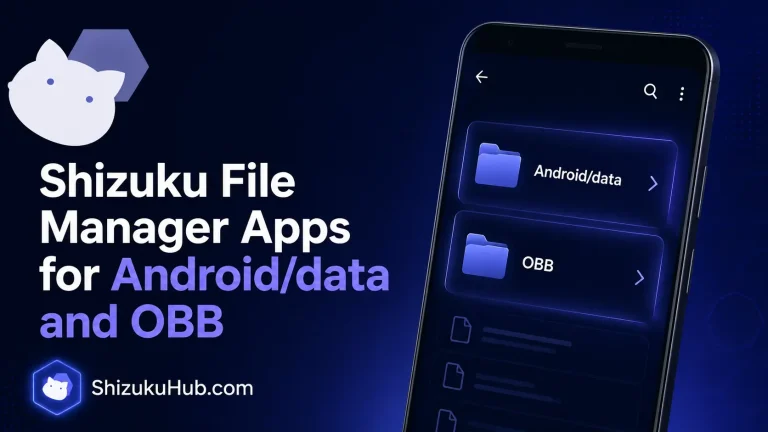
Compatible file managers can use Shizuku to work around some storage restrictions affecting Android/data and OBB. Compare the available Shizuku file manager apps before choosing one.
04
Freeze or Disable Apps
App freezers can suspend or disable packages so they stop running until you enable them again. Hail with Shizuku is useful for apps you want to keep installed but inactive.
05
Run ADB Commands on the Phone
After Shizuku starts, supported shells can run many ADB-style tasks directly on Android. You can use aShell with Shizuku or configure Termux and rish for a fuller terminal workflow.
06
Improve App Backups
Some backup tools use Shizuku to access package details, install states, and other operations unavailable to a normal app. Capability varies by Android version, so verify exactly what the chosen backup app can restore.
07
Install and Manage App Packages
Compatible installers can handle split APK packages, background installation requests, or package-management operations through Shizuku. Android and OEM restrictions still decide which actions succeed.
08
Automate Advanced Tasks
Automation apps can trigger supported system actions through Shizuku without connecting a computer every time. Use narrow, understandable workflows and avoid importing scripts you have not reviewed.
09
Customize Android Behavior
Shizuku-aware utilities can adjust supported system settings, components, app states, and interface behavior. The available options differ by phone brand and Android release.
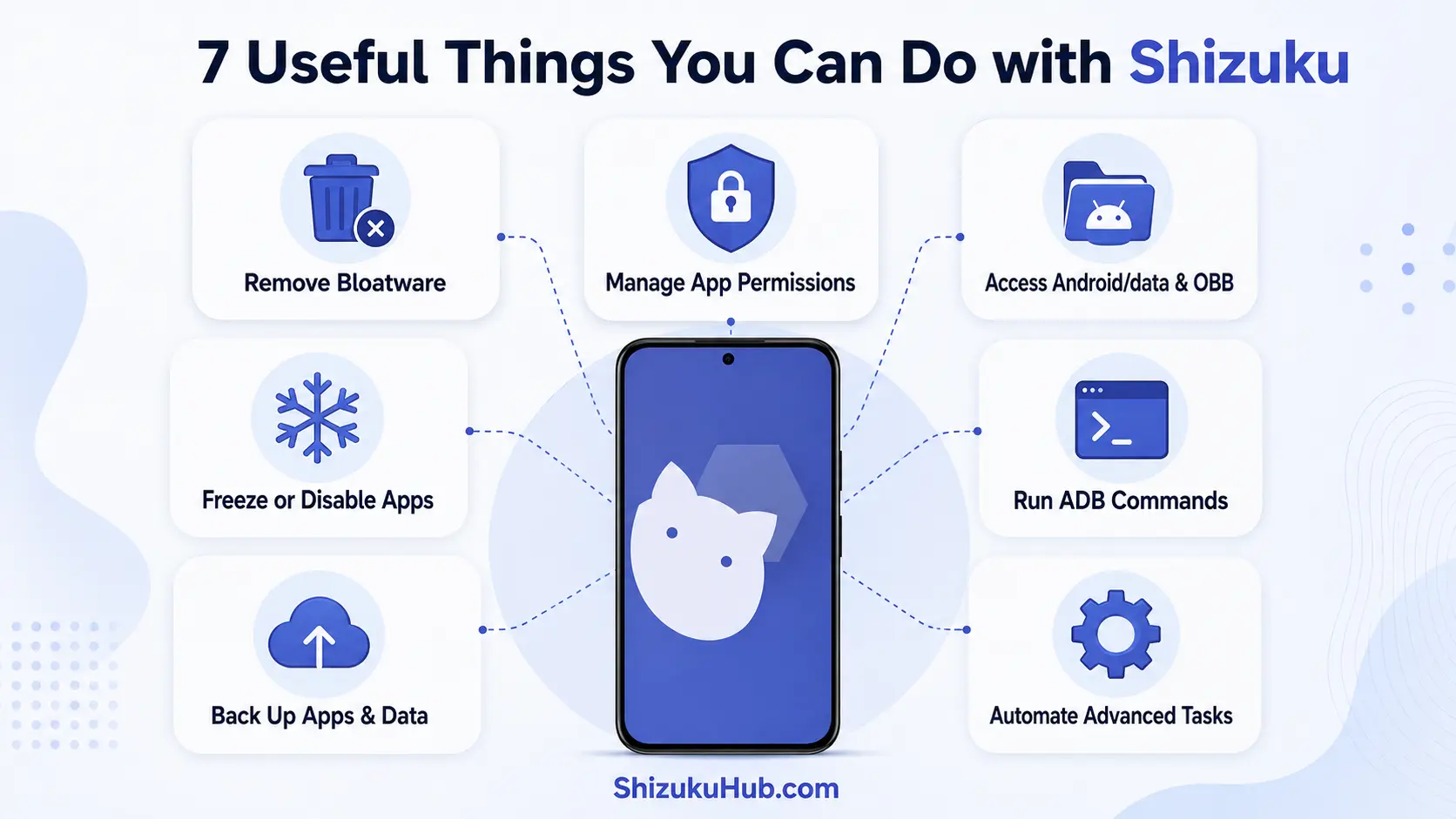
Seven popular Shizuku use cases at a glance
The infographic summarizes the tasks most users explore first. Each task still requires a compatible companion app, and the result can differ by Android version and device manufacturer.
Developer and power-user workflows
Developers can use Shizuku-aware utilities to test package behavior, inspect system services, run repeatable shell commands, and validate how an app behaves under different permission states. Because the companion app talks to Android system APIs through the Shizuku service, many operations can be cleaner than repeatedly opening a computer terminal for individual ADB commands.
Power users can also combine terminal scripts with supported automation tools. This is useful for repeatable maintenance, such as disabling a group of packages for testing, collecting selected diagnostics, or applying a known settings change. A script can make the same mistake faster, so read every command and keep the workflow limited to a device and Android version you understand.
How to confirm an app really supports Shizuku
Look for an explicit Shizuku option in the app settings, a Shizuku authorization prompt, or documentation that identifies the feature powered by Shizuku. A vague claim such as “advanced access” is not enough. The app should explain what changes when access is approved and what remains unavailable without it.
After approval, Shizuku should list the app among authorized applications. If the feature still fails, confirm that the Shizuku service is running, the app is updated, and the operation is available to the current ADB or root mode. Compatibility problems can be specific to Android releases and manufacturer ROMs rather than a fault in Shizuku itself.
Choose the right Shizuku app for your goal
Shizuku does not include a built-in debloater, file manager, freezer, or backup screen. Choose a companion app that clearly states Shizuku support and matches the task you want to complete.
| Goal | What Shizuku Enables | Good Starting Point |
|---|---|---|
| Remove unwanted packages | ADB-level package operations without permanent root | Canta or another trusted debloater |
| Control app permissions | Grant or revoke supported app permissions and app-ops | A Shizuku permission manager |
| Access protected folders | Helps compatible file managers work with restricted Android folders | A Shizuku-supported file manager |
| Freeze apps | Disable or suspend selected packages until you need them again | Hail or a similar app freezer |
| Run shell tasks | On-device ADB-style commands through a supported terminal workflow | aShell or Termux with rish |
| Back up apps | Extra package and data operations when the backup app supports them | A compatible backup utility |
For a broader selection, compare our Shizuku supported apps. Install only the tools you need and remove authorization when you stop using them.
What Shizuku cannot do
Shizuku is powerful, but it is not a universal replacement for root and it cannot bypass every Android security boundary.
- It cannot make an app work with Shizuku when that app has no Shizuku or compatible shell support.
- ADB-mode Shizuku cannot write anywhere that the Android shell user is blocked from accessing.
- It does not unlock the bootloader, patch the boot image, install a custom kernel, or modify protected partitions by itself.
- It cannot guarantee that the same hidden or restricted API will remain available across every Android release or manufacturer ROM.
- Stopping Shizuku does not automatically reverse package, permission, or settings changes already applied by another app.
If a task genuinely requires unrestricted superuser access, compare Shizuku and root before changing your setup.
What you need before using Shizuku apps
- Install the verified Shizuku APK available from the homepage.
- Start the service with wireless debugging on Android 11 or newer, computer ADB, or optional root.
- Install a companion app that explicitly supports Shizuku.
- Approve its Shizuku request only after understanding the feature that needs access.
- Restart the service after reboot when using the normal ADB startup method.
If the service does not start or disappears after restarting the phone, use the fixes in Shizuku not running after reboot.
Use Shizuku features safely
Treat every Shizuku authorization as a meaningful system-access decision. Google recommends that apps request only the permissions needed for a specific action and remain transparent about why access is required. The same principle is useful when choosing Shizuku companion apps. Read the Android Developers permission overview for the platform-level reasoning behind minimal, purpose-specific access.
- Approve apps with a clear purpose, active maintenance, and understandable behavior.
- Do not grant Shizuku access merely because an app asks for it at launch.
- Back up important data before debloating, package changes, or experimental automation.
- Prefer reversible actions such as disabling or freezing before permanent removal.
- Review authorized apps inside Shizuku and revoke access you no longer use.
Frequently asked questions
Start with one useful Shizuku task
Download the current Shizuku APK, start the service using the method supported by your Android version, and connect only the companion apps you understand and trust.