
APP MANAGEMENT · BACKUP · FILES · INSTALLERS · TERMINAL
Shizuku Supported Apps: Best Apps That Work With Shizuku
Discover useful Shizuku supported apps for debloating, freezing apps, running local ADB commands, cleaning storage, installing split APKs, managing Android/data, controlling permissions, backing up apps, automation, and device customization without permanent root.

What are Shizuku supported apps?
Shizuku supported apps are Android applications that integrate the Shizuku API or use its shell service to perform selected tasks normally restricted by the operating system. As explained in our complete Shizuku APK guide, Shizuku acts as a controlled bridge. It does not automatically change the phone; a compatible app must request permission, and you decide whether to approve it.
The exact capability depends on how Shizuku is running. Our Shizuku wireless debugging guide covers the no-root startup method, while computer ADB also gives shell-level access and root mode can expose broader privileges. An app feature that requires root may still remain unavailable when Shizuku is running in non-root ADB mode.
This page focuses on established use cases and currently maintained tools. Compatibility can change after Android or app updates, so verify the feature you need inside the app before changing system packages, permissions, files, or installation settings.
Shizuku must be running
Start the service first. On Android 11 and newer, wireless debugging is normally the easiest non-root method.
The app needs integration
Installing Shizuku does not upgrade every Android app. The companion app must explicitly support Shizuku or its shell.
Permission stays under your control
Approve each supported app separately in Shizuku. Access can be revoked later from Application management.
Four useful Shizuku apps to start with
These apps represent four common reasons people install Shizuku. The logos below are the actual app marks, while the descriptions explain what Shizuku enables and where caution is needed.

Canta
Best for: debloating and restoring packages.
Canta uses Shizuku to uninstall user and selected system packages for the current Android user without root. It labels many packages and keeps a restore list, but removing an essential framework, launcher, phone, account, or connectivity component can still break features.

Hail
Best for: freezing, hiding, or disabling apps.
Hail can organize apps into groups and freeze them through a Shizuku-supported working mode. A frozen app cannot behave normally until it is restored, so exclude alarms, messaging, authentication, wearable, accessibility, and device-management apps that must run in the background.

aShell You
Best for: running local ADB shell commands.
aShell You provides a Material-style terminal for commands executed through Shizuku. It is useful for package queries, settings commands, diagnostics, and other shell tasks without connecting a PC. Commands are not automatically safe; understand each command before running it.

SD Maid SE
Best for: storage maintenance and app control.
SD Maid SE can inspect storage, find leftovers, clean selected expendable data, analyze files, and use Shizuku for supported app-management operations. Review every cleanup result because cache, offline media, exported files, and app folders can contain data you still need.
Shizuku app ecosystem at a glance
This full-size visual shows the main app categories that connect to the Shizuku service. Each companion app still requests its own permission and only performs the functions built into that app.
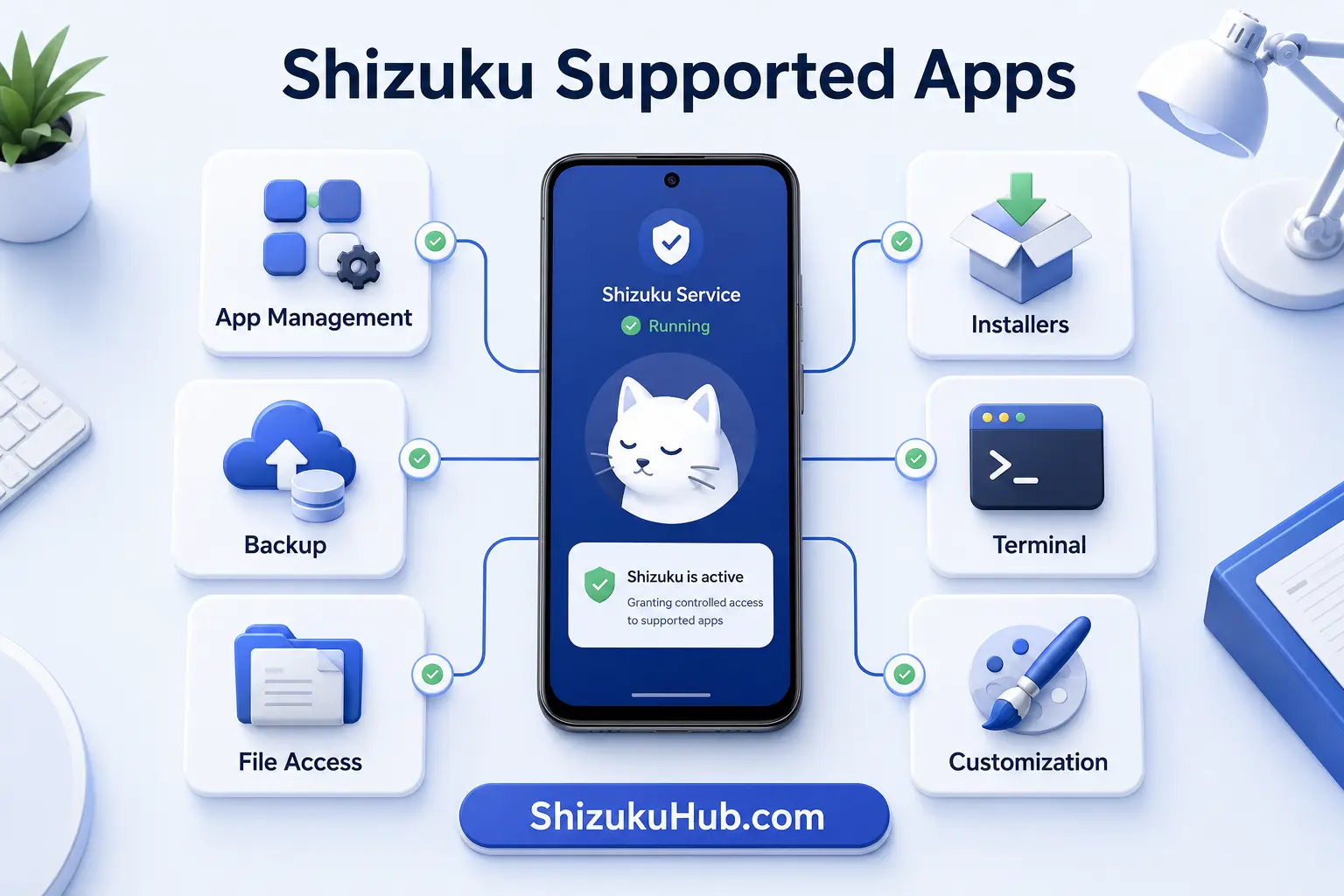
Shizuku supported apps by category
No single app needs every capability. Choose the category that matches your task, then confirm the exact feature and Android-version support.
App and package management
- Canta
- Hail
- AppControlX
- FreezeYou
- Inure App Manager
- Package Manager
Uninstall, disable, freeze, force-stop, inspect, or organize packages using the modes each app supports.
APK and split-package installers
- InstallerX Revived
- InstallWithOptions
- SAI
- Shizuku Package Installer
- PI
- universal-installer
Install APK, APKS, APKM, XAPK, split packages, batches, or advanced installer flags where Android permits.
File access and maintenance
- SD Maid SE
- MiXplorer
- X-plore
- ZArchiver
- Solid Explorer
- fluffy
Depending on the app and Android version, Shizuku can help with Android/data, Android/obb, installation, or maintenance operations.
Terminal and developer tools
- aShell
- aShell You
- LogFox
- CurrentActivity
- LibChecker
- Cosmic IDE
Run shell commands, inspect activities, read supported logs, check libraries, and use development workflows on-device.
Customization and automation
- ShizuTools
- System UI Tuner
- TapTap
- Taskbar
- PhoneProfilesPlus
- Geto
Change supported hidden settings, create gestures, automate device profiles, and unlock additional interface controls.
Backup, privacy, and network
- Swift Backup
- App Ops
- ManageSensors
- ShizuWall
- NetworkSwitch
- WiFiList
Use supported batch restores, permission controls, sensor operations, firewall modes, network switching, or saved Wi-Fi tools.
Which Shizuku app should you choose?
- Remove bloatware: Canta.
- Temporarily stop apps: Hail or FreezeYou.
- Run ADB commands: aShell You.
- Install split packages: SAI or InstallerX Revived.
- Clean and inspect storage: SD Maid SE.
- Backup and restore apps: Swift Backup, within its Shizuku limitations.
- Control app operations: App Ops or ManageSensors.
How to connect an app to Shizuku
- Install and start Shizuku.
- Install a compatible companion app.
- Open the app and select its Shizuku mode or feature.
- Approve the Shizuku permission prompt.
- Confirm the app appears in Shizuku Application management.
- Perform one reversible test before using batch or system-level actions.
If the prompt does not appear, restart Shizuku, reopen the app, and verify that its current build still includes Shizuku support.
Are apps that use Shizuku safe?
Shizuku permission is powerful, but it does not make a companion app trustworthy. Prefer actively maintained apps, understand the requested operation, and use open-source options when practical. The curated ecosystem commonly separates open-source and closed-source projects because source availability changes how much independent review is possible.
Independent reporting also shows how these tools are used in practice. For example, Yahoo Tech’s Canta walkthrough demonstrates authorizing Canta through Shizuku and warns against removing packages marked unsafe. This is an informational authority reference, not a download requirement.
- Back up important data before debloating, freezing, cleaning, restoring, or replacing packages.
- Do not approve an app simply because it displays a Shizuku prompt.
- Start with user apps and reversible changes before touching system components.
- Review package names instead of relying only on friendly app labels.
- Revoke Shizuku access when you no longer use an app.
- Remember that non-root Shizuku still cannot bypass every Android or manufacturer restriction.
Why is a supported app not detecting Shizuku?
| Problem | Likely reason | Fix |
|---|---|---|
| Shizuku not running | Service stopped after reboot | Start Shizuku again through wireless debugging, ADB, or root |
| No permission prompt | App did not request access or integration is disabled | Enable Shizuku mode inside the app and reopen it |
| Permission denied | Access was rejected or revoked | Open Shizuku Application management and reauthorize |
| Feature still unavailable | It requires root or a different Android version | Check the app’s feature requirements; Shizuku shell is not full root |
| App disconnects | Battery management ended Shizuku or the companion app | Allow background activity and remove aggressive battery restrictions |
| Action fails on one brand | OEM policy limits package, permission, or file operations | Check manufacturer-specific settings and use a reversible alternative |
Shizuku supported apps FAQ
Start using Shizuku supported apps
Install the tested Shizuku APK from our homepage, start the service, and authorize only the companion apps and actions you understand.