
ANDROID 15 • ANDROID 16 • NO ROOT
Shizuku for Android 15 and 16: Compatibility and Setup Guide
Shizuku works on Android 15 and Android 16, including Android 16 QPR1 when you use a compatible release. This guide explains the correct version, wireless debugging setup, reboot behavior, permissions, fixes, and direct APK download in one place.
Quick compatibility answer
Both Android versions support Shizuku without permanent root. Use the newest stable APK for the smoothest startup experience.
15
Android 15
Compatible with wireless debugging and computer ADB. Shizuku 13.5.4 or newer works, while 13.6.0 is the recommended download.
16
Android 16
Use Shizuku 13.6.0. This release added Android 16 QPR1 support and an updated start command.
✓
Root not required
On Android 11 and newer, wireless debugging can start Shizuku directly on the phone. Root remains an optional method.
Does Shizuku work on Android 15 and Android 16?
Yes. Shizuku can provide supported apps with ADB shell-level capabilities on Android 15 and Android 16. The normal no-root route uses Android’s built-in wireless debugging feature, so you do not have to unlock the bootloader, flash a patched image, or install a superuser manager.
For Android 16, version selection matters. Shizuku 13.6.0 specifically added support for Android 16 QPR1 and updated the service start command. Android 15 users can run earlier compatible releases, but installing the current stable build is the simplest way to receive newer compatibility fixes. If you are new to the app, first read our complete Shizuku APK guide for a broad overview of how the service and companion apps work.
Android 15 vs Android 16 compatibility
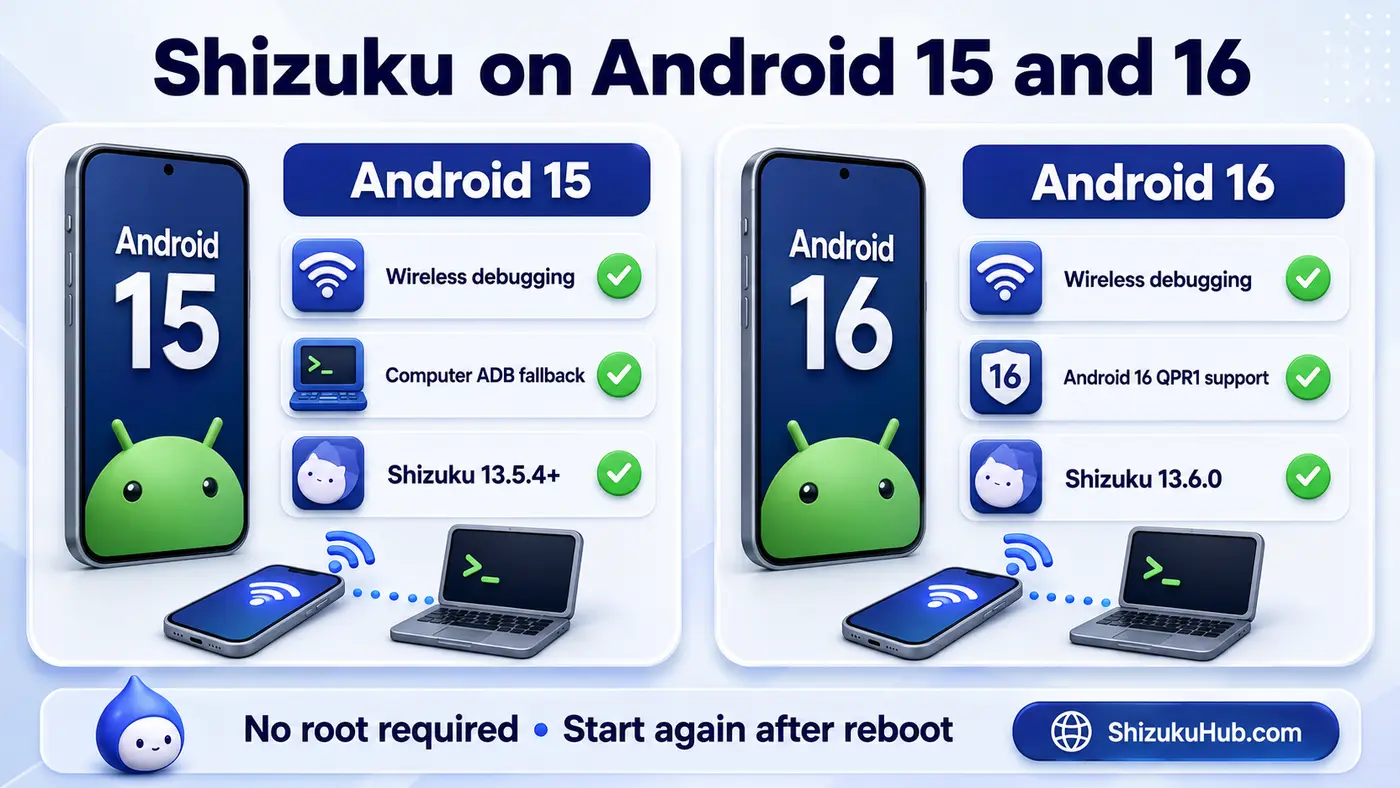
The setup flow is almost identical. The important difference is using Shizuku 13.6.0 on Android 16 QPR1 so the service starts with the updated command.
| Feature | Android 15 | Android 16 |
|---|---|---|
| Recommended Shizuku version | 13.6.0 | 13.6.0 |
| Minimum practical choice | 13.5.4 or newer | 13.6.0 for QPR1 |
| Wireless debugging | Supported | Supported |
| Computer ADB fallback | Supported | Supported |
| Root required | No | No |
| Pair again after every reboot | Usually no | Usually no |
| Start service after reboot | Normally yes | Normally yes |
Which Shizuku version should you install?
Install Shizuku 13.6.0 on both Android 15 and Android 16. It is the newest stable build in this guide, supports Android 16 QPR1, and avoids relying on an older start command. The same APK is suitable for Android 15, so there is no need to maintain separate files for the two operating systems.
An older APK can be useful only when a specific phone, ROM, or companion app has a documented compatibility issue. In that situation, compare release details on our Shizuku old versions archive and return to the latest release after testing.
How to set up Shizuku on Android 15
The fastest no-root method stays entirely on the phone. Manufacturer menu labels may differ slightly, but the order is the same.
- Download Shizuku 13.6.0 from the button on this page and install the APK.
- Open Settings > About phone and tap the build number seven times to enable Developer Options.
- Open Developer Options, enable Wireless debugging, and keep Wi-Fi connected.
- Open Shizuku, choose Pairing, then use the notification workflow to enter the six-digit pairing code.
- Return to Shizuku and tap Start. The status should change to “Shizuku is running.”
- Open a supported companion app and approve its Shizuku permission request.
For screenshots, pairing-code details, and brand-specific menus, follow our complete Shizuku wireless debugging guide.
How to set up Shizuku on Android 16
Android 16 uses the same Android 11+ wireless debugging foundation. Shizuku 13.6.0 accounts for the Android 16 QPR1 service-start changes.
- Install Shizuku 13.6.0. Do not depend on an older pre-QPR1 start command.
- Enable Developer Options, then turn on Wireless debugging while connected to Wi-Fi.
- In Shizuku, start pairing and open Android’s “Pair device with pairing code” dialog.
- Enter the displayed code through the Shizuku notification. Keep both screens open until pairing finishes.
- Tap Start in Shizuku and verify the running status before opening a companion app.
- If an Android update resets debugging state, toggle Wireless debugging off and on, then start again.
What changed for Android 16 QPR1?
Android 16 QPR1 changed behavior that affected the command used to start the Shizuku service. Release 13.6.0 added explicit QPR1 support and refreshed that start command. In practical terms, users should update the Shizuku APK instead of copying an outdated command from an old tutorial.
Android 16 also continues Google’s broader platform and security changes. Google’s Android 16 overview explains the release rollout and security direction. Shizuku setup itself remains available here in plain steps, including the fixes needed when a device maker changes a menu name.
No-root and root startup methods
Most Android 15 and 16 users should choose wireless debugging. It is built into Android, needs no PC after setup, and preserves the phone’s normal boot security. Our Shizuku without root guide compares wireless debugging with computer ADB and explains when each method makes sense.
◉
Wireless debugging
Best for Android 15 and 16. Pair and start on the same phone over Wi-Fi. No bootloader changes or permanent root.
>_
Computer ADB
A reliable fallback if a manufacturer hides wireless debugging or pairing will not complete. The service still stops after a reboot.
#
Root mode
Optional for already-rooted devices. It can start automatically at boot, but rooting is not required merely to use Shizuku.
What happens after a reboot?
Wireless-debugging and computer-ADB sessions normally stop when Android restarts. Open Shizuku and start the service again before using a companion app. Pairing is usually remembered, so most users do not need a new six-digit code after every reboot.
Shizuku 13.6.0 can also support automatic no-root startup on Android 13 and newer when the phone connects to a trusted wireless network. Availability can vary with the device software, Wi-Fi state, and battery controls, so confirm the running status rather than assuming it started.
Permissions, privacy, and companion apps
Shizuku does not perform debloating, backup, file management, or customization by itself. It creates a service that compatible apps can request. You decide which app receives access, and you can revoke an approval from inside Shizuku.
Only approve tools you recognize and only for a task you understand. Browse our categorized Shizuku supported apps list to compare app managers, installers, backup tools, file managers, terminals, and customization utilities.
Common Android 15 and 16 problems
These four fixes solve most pairing and startup failures without reinstalling the operating system.
1
Pairing service keeps searching
Keep Shizuku open, enable notifications, turn Wireless debugging off and on, and retry while the phone stays connected to Wi-Fi.
2
Six-digit code fails
Generate a fresh pairing code, enter it before the dialog closes, and avoid switching between networks during pairing.
3
Service stops or will not start
Use Shizuku 13.6.0, disable aggressive battery restrictions for Shizuku, then toggle Wireless debugging and tap Start again.
4
Companion app gets no permission
Start Shizuku first, update the companion app, reopen it, and review the authorized-app list in Shizuku.
Pixel, Samsung, Xiaomi, OnePlus, OPPO, and other phones
Google Pixel: Developer Options and Wireless debugging normally use Android’s standard labels. After a monthly or quarterly update, restart Shizuku if the service is not running.
Samsung Galaxy: Developer Options appears after tapping Build number under Software information. Battery and background limits may stop notifications, so allow Shizuku to run without aggressive sleeping rules.
Xiaomi, Redmi, and POCO: MIUI or HyperOS may add extra security or USB-debugging options. Wireless debugging still uses Android pairing, but menu placement and background restrictions can differ.
OnePlus, OPPO, Realme, and Vivo: Look for Developer Options under additional or system settings. If pairing completes but startup fails, keep Wi-Fi active and remove battery restrictions temporarily.
On any brand, a computer ADB start is the clean fallback when the wireless pairing screen is missing or heavily modified.
Safe installation checklist
- Download the APK from this page, then confirm the filename and version before installing.
- Our downloadable files are scanned with VirusTotal and tested on real devices before publication.
- Keep Google Play Protect enabled and review Android’s install prompt.
- Approve Shizuku access only for companion apps you intentionally installed.
- Revoke permissions for tools you no longer use.
Shizuku Android 15 and 16 FAQs
Download Shizuku for Android 15 and 16
Install Shizuku 13.6.0, use wireless debugging for a no-root start, and return to this guide whenever an Android update changes the startup behavior.