How to Use Shizuku With aShell
Run useful ADB and Linux shell commands directly on Android with aShell and Shizuku, without permanent root or a computer after setup.
What Is aShell?
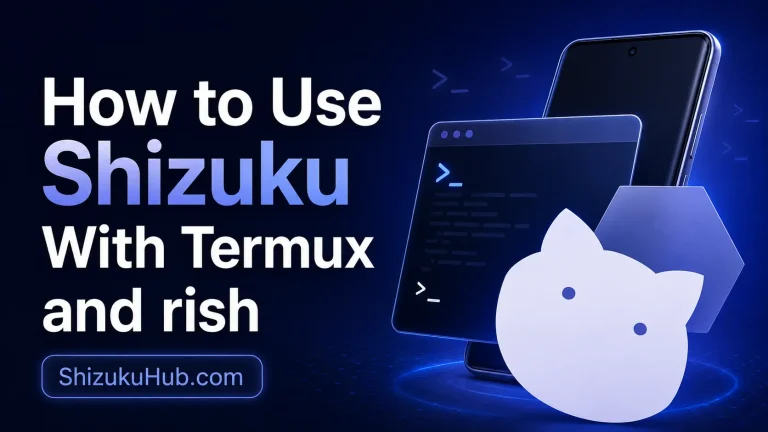
aShell is a local Android ADB shell designed for Shizuku-powered devices. Instead of connecting the phone to a computer for every task, you can enter supported shell commands inside the app and let the running Shizuku service execute them with Android shell-level privileges.
The app includes common command examples, bookmarks, searchable output, continuous-command support, saved output, automatic light and dark themes, and a file manager for privileged locations. It is intended for users who understand basic ADB or Linux commands. aShell is different from a normal terminal emulator because its useful access comes from Shizuku rather than the app sandbox.
›_
Local ADB Shell
Run shell commands on the same Android phone through Shizuku. After Shizuku starts, ordinary use does not need a USB cable or computer.
⌕
Search and Save Output
Search the latest command output, save results to a text file, and bookmark commands you expect to use again.
↻
Continuous Commands
View continuously updating output from tools such as logcat or top, then stop the process when you have collected enough information.
Requirements Before Using aShell
- An Android phone running Android 7.0 or newer.
- The current Shizuku APK installed and showing that its service is running.
- Wireless Debugging on Android 11 or newer, computer ADB on older versions, or optional root startup.
- The current aShell APK installed.
- Basic knowledge of ADB/Linux command syntax and the exact purpose of each command.
If Shizuku is not running, aShell cannot obtain its local shell access. Complete the Shizuku Wireless Debugging setup or use the computer method before opening aShell.
Download aShell APK
The current aShell release is v0.28, requires Android 7.0 or newer, and uses the package name in.sunilpaulmathew.ashell. The APK is approximately 2.1 MiB. The direct button below downloads the current F-Droid build, which is signed by the original developer and corresponds to the published source build.
aShell runs ADB shell commands through Shizuku. To understand ADB command behavior, device authorization, and Android Debug Bridge fundamentals, see the Android Developers ADB documentation.
How to Connect aShell to Shizuku
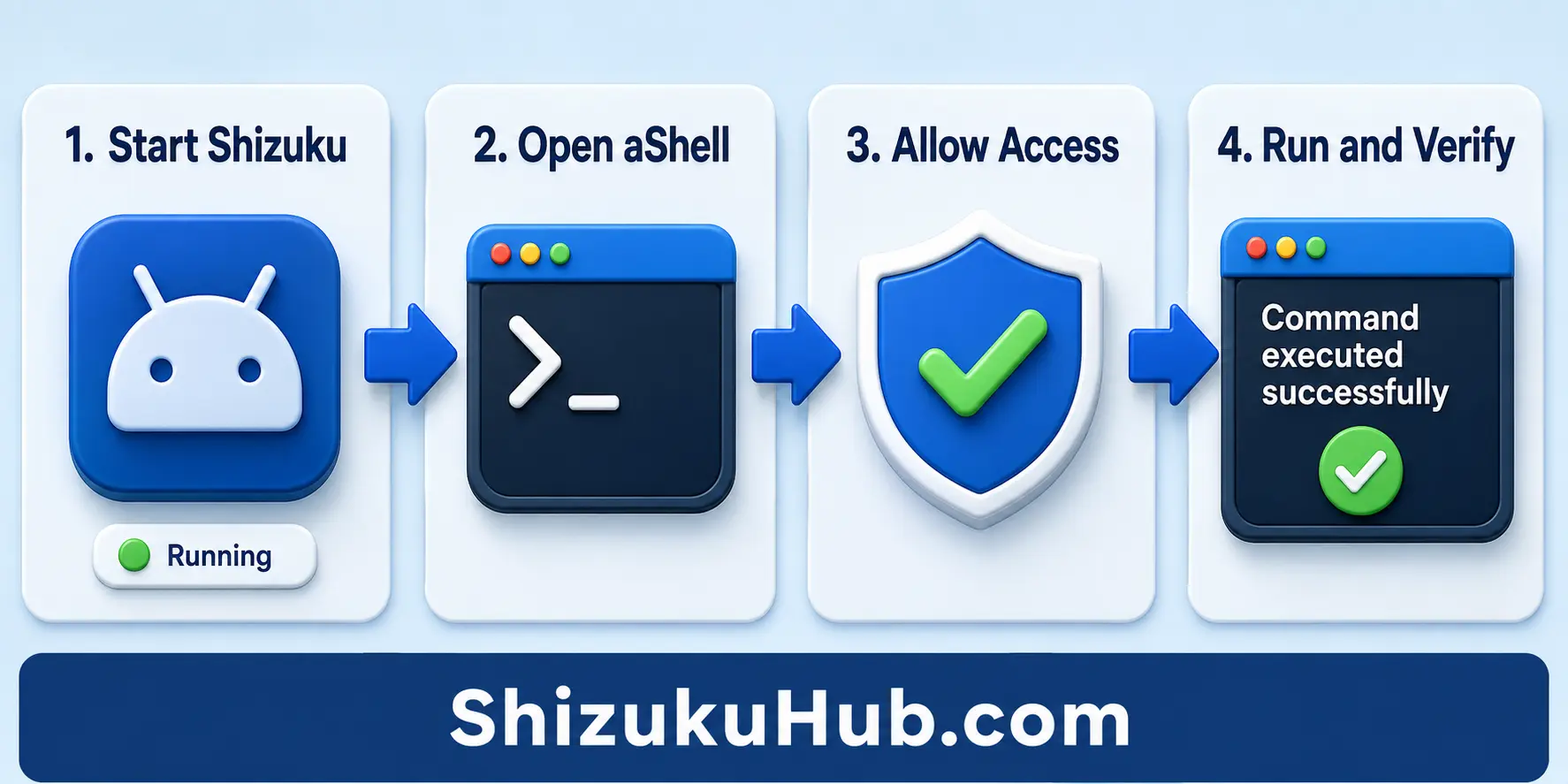
Step 1: Start Shizuku
Open Shizuku and confirm the status shows that the service is running. If the phone was restarted, start the service again before continuing.
Step 2: Install and Open aShell
Install the aShell APK, open the app, and read its command-safety warning. aShell needs Shizuku access for local ADB commands.
Step 3: Allow Shizuku Permission
When Shizuku shows the authorization prompt, verify that aShell is requesting access and tap the available Allow option. You can review or revoke this permission later inside Shizuku.
Step 4: Run a Read-Only Test
Start with a command that only reads information, such as getprop ro.build.version.release. Confirm the output matches the Android version on the phone before attempting package-management commands.
Useful Read-Only aShell Commands
Read-only commands are the safest place to learn aShell because they collect information without intentionally changing Android. Enter one command at a time and read the complete output.
getprop ro.build.version.release
pm list packages
pm list packages -3
dumpsys battery
getprop ro.build.version.releaseshows the installed Android release.pm list packageslists package identifiers installed for the current environment.pm list packages -3filters the list to third-party apps on many Android builds.dumpsys batteryreports the battery service state, charge status, and related values.
Output can vary between Android versions and manufacturers. A command returning different formatting is not automatically an error.
Manage Android Packages With aShell
Package-manager commands can remove or restore apps for the primary Android user. Replace the example identifier only after confirming the exact package name and its purpose.
pm uninstall --user 0 com.example.optionalapp
cmd package install-existing com.example.optionalapp
pm uninstall --user 0 removes the selected package for Android user 0. For a preinstalled system package, the original APK commonly remains in the read-only firmware. cmd package install-existing can often restore that retained package for the current user.
If your goal is debloating, compare the manual method with our Shizuku debloat page. A package-focused app can provide descriptions and ratings that a raw shell does not.
Safe Command Workflow
Step 1: Identify the Target
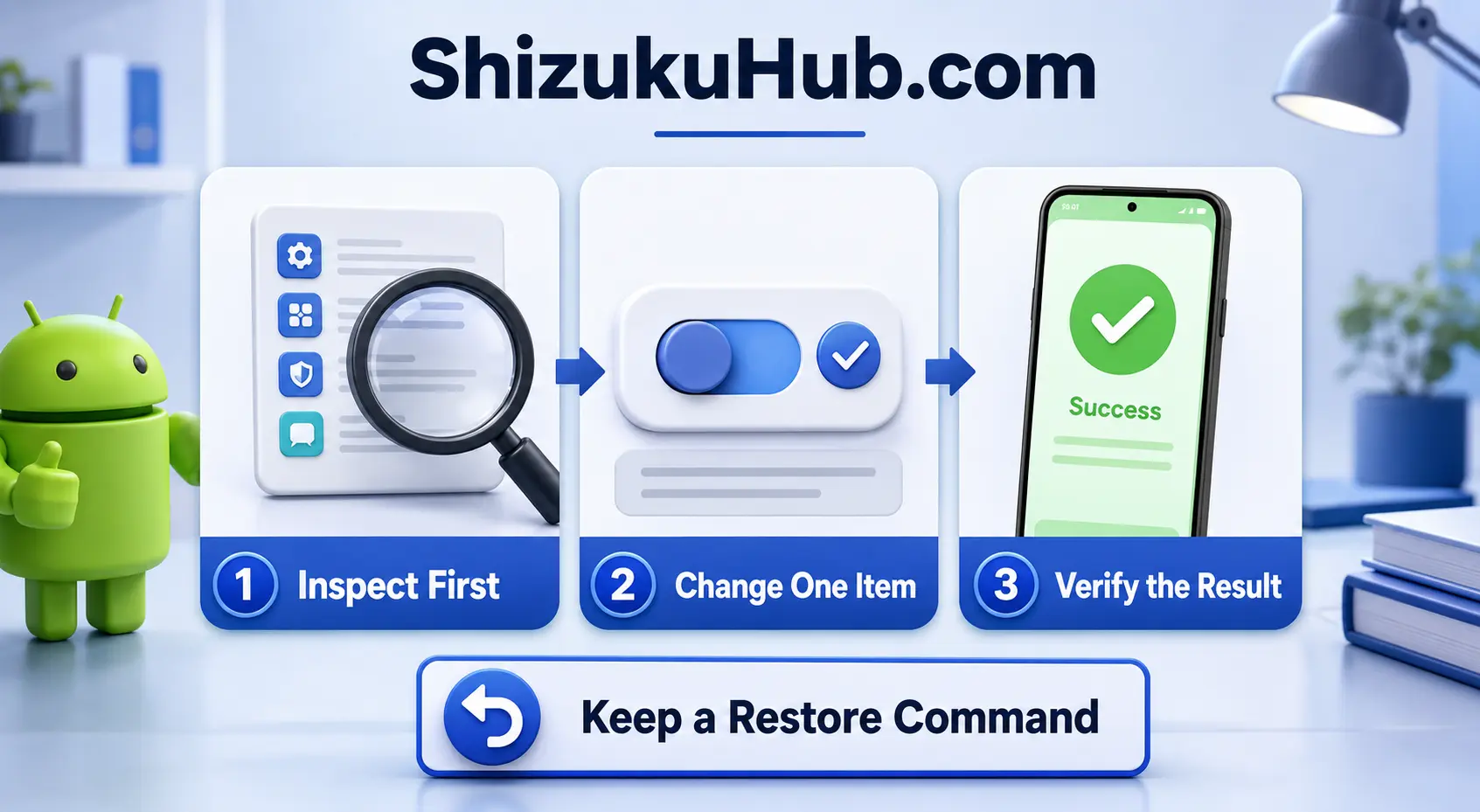
Use a read-only listing command and confirm the exact package, process, file path, or Android service you intend to inspect.
Step 2: Understand the Command
Check every option, spacing mark, user number, and package identifier. Do not paste commands from an unrelated phone model without understanding them.
Step 3: Change One Item
Run a single reversible command. Avoid bulk scripts during the first session because one failure becomes harder to trace.
Step 4: Verify the Result
Test the affected app or feature immediately. For package changes, also test calls, messages, Wi-Fi, mobile data, Bluetooth, camera, notifications, and the launcher.
Step 5: Keep a Restore Command
Record the exact package name and the reversal command before making another change. A short written history is more reliable than memory.
Commands and Targets to Avoid
- Do not run destructive file commands against system, data, storage, or unknown paths.
- Do not disable System UI, Settings, permission controller, package installer, launcher, keyboard, telephony, connectivity, security, or update services.
- Do not copy root-only commands and assume Shizuku provides full root access. It normally provides Android shell-level access, which is different.
- Do not execute scripts that contain several package removals until every line has been reviewed.
- Do not grant aShell permission to another person or allow remote access you do not understand.
Shizuku makes shell access more convenient, but it does not make an unsafe command safe. Android may reject commands that exceed shell permissions, while other powerful commands can still break apps or device features.
Using the aShell File Manager
aShell includes a file manager for locations that can be reached through its Shizuku-powered shell access. It can help inspect, copy, move, or delete supported files without typing every file command manually.
Access still depends on Android version, storage restrictions, file ownership, and Shizuku permissions. Some protected directories remain unavailable because Shizuku is not the same as unrestricted root. Before moving or deleting anything, copy important files to a normal user-accessible folder and verify the backup. To compare other compatible utilities, see Shizuku Supported Apps.
aShell and Shizuku Troubleshooting
aShell Says Shizuku Is Unavailable
Start Shizuku, close aShell completely, and reopen it. Confirm aShell appears in Shizuku’s authorized-app list.
Permission Prompt Does Not Appear
Verify Shizuku is running, revoke any stale aShell authorization, and reopen the app. Reinstalling aShell should be a later step, not the first.
Command Returns Permission Denied
The command may require root, a different Android user, a protected SELinux context, or a capability Android does not grant to the shell user. Do not repeatedly force the same command.
Command Is Not Found
Check spelling and whether that binary exists on your Android build. Manufacturers can omit tools or place them in different locations.
aShell Loses Access After Reboot
A non-root Shizuku service normally stops after a restart. Start Shizuku again, then reopen aShell. If startup continues to fail, use Start Shizuku With ADB.
Continuous Output Will Not Stop
Use the app’s stop or interrupt control. Commands such as logcat and top continue until stopped, so a missing final prompt is expected while they run.
What aShell With Shizuku Can and Cannot Do
aShell can run many commands available to Android’s shell user, inspect packages and services, collect diagnostic output, manage supported package states, access permitted files, and make repeatable command workflows easier.
It cannot automatically provide full root access, bypass every Android security boundary, guarantee access to all app-private data, or make every Linux command available. Results depend on Android version, manufacturer changes, SELinux policy, installed command-line tools, and the way Shizuku was started.
Frequently Asked Questions
Start With a Read-Only Command
Download Shizuku, connect aShell, verify the permission, and learn with commands that only display information before changing Android.