APP PERMISSIONS • APPOPS • NO PERMANENT ROOT
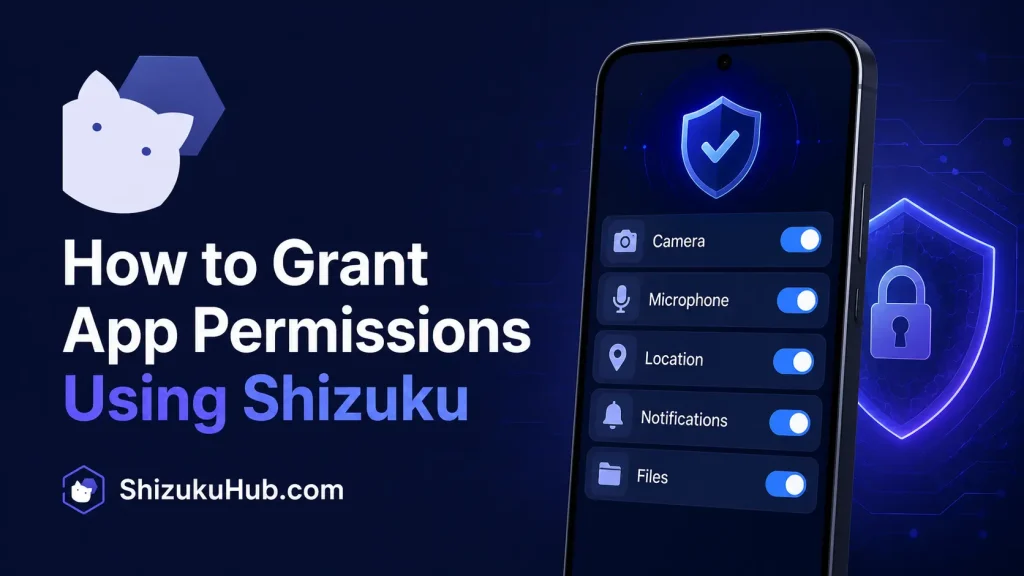
How to Grant App Permissions Using Shizuku
Use a Shizuku permission manager to review, grant, revoke, or fine-tune supported Android app permissions without permanently rooting your phone. This walkthrough covers safe GUI controls, command-based changes, AppOps modes, testing, and complete rollback steps.
What Is a Shizuku Permission Manager?
A Shizuku permission manager is a compatible Android app that connects to the running Shizuku service and uses its ADB shell-level privileges to manage supported permissions or AppOps. It can expose controls that are unavailable or scattered across normal Android Settings, while avoiding a permanent root modification.
Shizuku itself is not a universal permission editor. It provides the privileged bridge. A companion app such as App Ops, or a Shizuku-enabled terminal such as aShell, performs the actual grant, revoke, or AppOps command. Check our Shizuku supported apps collection when choosing a compatible tool.
The OWASP Mobile Application Security guidance on Android permissions explains why Android separates normal, dangerous, signature, and special permissions. That distinction matters because Shizuku cannot turn every restricted permission into a grantable one.
✓
Grant Supported Access
Allow a declared runtime or development permission when Android permits the ADB shell user to grant it.
⌁
Control AppOps Modes
Set supported operations to Allow, Ignore, Deny, Foreground, or Default, depending on the operation and Android version.
↶
Revoke and Restore
Reverse a grant or return an AppOps value to Default if an app behaves incorrectly after the change.
Two Different Permissions You Must Not Confuse
1. Permission to Use Shizuku
A compatible app displays a Shizuku authorization prompt. Tapping Allow lets that app communicate with the Shizuku service. It does not automatically give the app camera, location, files, contacts, or microphone access. Review or revoke this connection from Shizuku › Authorized Applications.
2. Android Permission or AppOps State
After authorization, the companion permission manager can request a supported system change for another installed app. The target app must usually declare the permission in its manifest, the shell user must be allowed to change it, and the installed Android build must support that operation.
Granting Shizuku authorization is therefore only the connection step. Always inspect the target package, permission name, current value, and expected purpose before applying a change.
Which Android Permissions Can Shizuku Manage?
| Permission Type | Examples | Can It Be Changed? | Important Limit |
|---|---|---|---|
| Runtime permissions | Camera, microphone, location, notifications | Often, if declared and grantable | The app may still require user-facing consent or a compatible target SDK |
| AppOps | Background location, clipboard, usage access, wake locks | Many operations expose adjustable modes | Available modes and behavior differ by Android version |
| Development permissions | WRITE_SECURE_SETTINGS when declared | Sometimes grantable through ADB shell | Not every signature permission is a development permission |
| Special access | Overlay, notification listener, accessibility, VPN | Usually controlled through dedicated Settings screens | Shizuku does not safely bypass every confirmation flow |
| Signature or privileged | Platform-only internal permissions | Usually no | Shizuku shell access is not equivalent to the platform signing key or root |
A successful command only means Android accepted that operation. It does not prove that the app will use the permission correctly. Conversely, a “not a changeable permission type” or “operation not allowed” result often means Android intentionally prevents the shell user from making that change.
How to Grant App Permissions With Shizuku
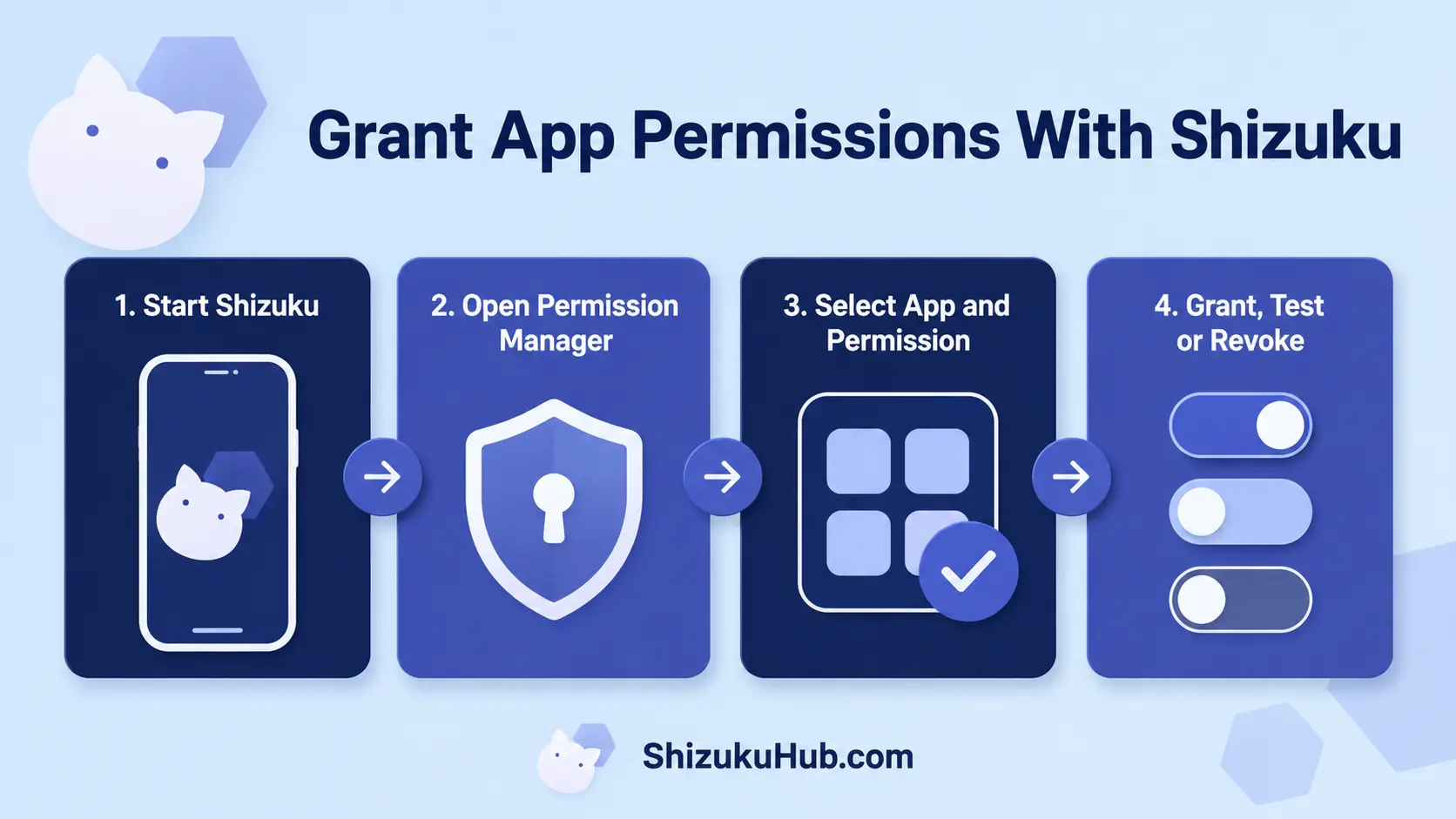
01
Start the Shizuku Service
Open Shizuku and confirm the status says Running. Android 11 and newer can use wireless debugging with Shizuku. ADB and wireless-debugging startup normally need to be repeated after every reboot.
02
Open a Compatible Permission Tool
Use App Ops for a visual permission and AppOps interface, or a Shizuku-enabled terminal for exact commands. Enable its Shizuku mode before selecting the target app.
03
Authorize the Permission Manager
Approve its Shizuku request, then confirm it appears under Authorized Applications. Deny access if the app name, developer, or requested purpose is unexpected.
04
Select the Exact Target App
Search by app name, then verify its package name. Similar apps and cloned profiles can have different packages, so never rely on an icon alone.
05
Grant One Permission at a Time
Record the current state and change only the permission required for a known feature. Avoid batch granting every available operation, especially for system apps.
06
Test and Revoke if Necessary
Force-stop and reopen the target app, test the affected feature, and watch for crashes or privacy changes. Restore the previous value immediately if the result is wrong.
Method 1: Use App Ops With Shizuku
- Start Shizuku and open App Ops.
- Select Shizuku as the working mode when prompted.
- Approve the Shizuku authorization request.
- Search for the target app and verify its package name.
- Open the permission or AppOps category you need.
- Note the existing state, then choose the required supported mode.
- Close and reopen the target app to test the change.
Common AppOps modes include Allow, Ignore, Deny, Foreground, and Default. Not every operation offers every mode. Default returns control to Android’s standard policy and is usually the safest rollback value.
A visual permission manager is easier for reviewing multiple apps because it shows current states and reduces package-name typing errors. However, it can still break app features if you change an operation without understanding it.
Method 2: Grant Permissions With aShell and Shizuku
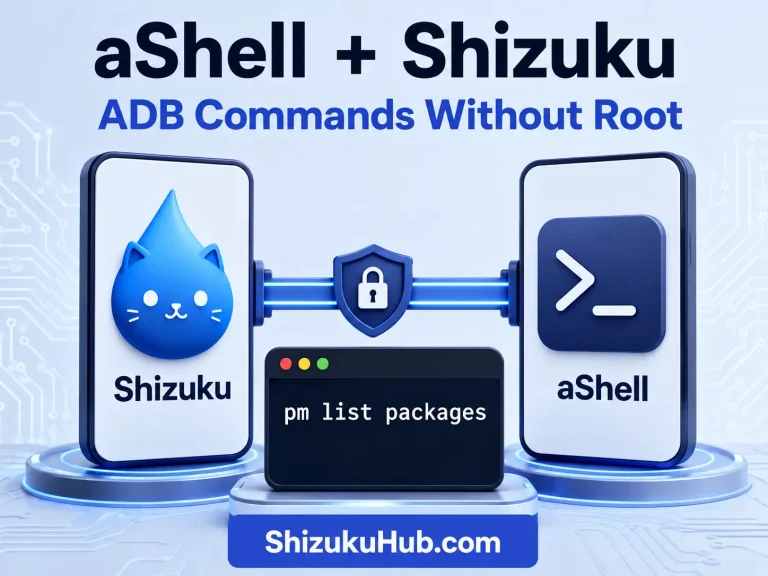
A Shizuku-enabled terminal provides precise control when you already know the package and permission names. Our aShell with Shizuku instructions explain the connection and command workflow.
Find the Package Name
pm list packagesLook for the exact package belonging to the target app. You can also copy its package name from a trusted app-information screen.
Grant a Declared Permission
pm grant com.example.app android.permission.POST_NOTIFICATIONSReplace both placeholders. The target app must declare the permission, and Android must treat it as grantable for the shell user.
Revoke the Same Permission
pm revoke com.example.app android.permission.POST_NOTIFICATIONSChange an AppOps Mode
appops set com.example.app CAMERA allowReturn an AppOps Value to Default
appops set com.example.app CAMERA defaultThese are syntax examples, not instructions to modify a particular real app. Confirm the package, permission, operation, and intended behavior before running a command. Error messages such as “unknown package,” “permission not requested,” or “operation not allowed” should be investigated instead of bypassed.
Permission Safety Checklist
- Change only permissions needed for a documented feature.
- Record the original state before every change.
- Test one change at a time so the cause of a problem remains clear.
- Avoid modifying system packages, launchers, permission controllers, telephony services, or setup components without device-specific documentation.
- Do not grant contacts, SMS, accessibility, microphone, location, or files access simply to remove an error message.
- Revoke Shizuku authorization from companion tools you no longer use.
- Remember that Shizuku started through ADB or wireless debugging normally stops after reboot.
Shizuku does not make an untrusted app safe. A powerful permission manager can change sensitive settings, so install tools carefully and approve only the access you understand. For a broader explanation of the no-root security boundary, see how Shizuku works without root.
Troubleshooting Shizuku Permission Manager Errors
No Shizuku Permission Prompt Appears
Confirm the companion app actually supports Shizuku and its Shizuku mode is enabled. Open Shizuku › Authorized Applications, revoke any stale entry, then reopen the permission manager.
The Service Is Not Running
Start Shizuku again after reboot. If wireless pairing fails or the service stops, verify Developer Options, wireless debugging, background activity, and manufacturer-specific security settings.
Package Not Found
Check spelling, user profile, work profile, clone-app space, and whether the target is installed for the current Android user. Package names are case-sensitive.
Permission Is Not Requested
The target app did not declare that permission in its manifest. Android normally refuses a grant in this situation. Do not substitute an unrelated permission.
Operation Not Allowed or Security Exception
The shell user may lack the required privilege, the permission may be signature-only, or the manufacturer may restrict the operation. Shizuku cannot guarantee identical permission access on every Android version and ROM.
The App Crashes After a Permission Change
Restore the previous permission or set the AppOps value to Default, force-stop the app, and reopen it. Clear data only as a last resort because that removes local app settings and may erase unsynced information.
Frequently Asked Questions
Manage Android App Permissions Without Permanent Root
Start Shizuku, authorize a trusted permission tool, change one supported value at a time, and keep a clear rollback path.